How to Display Lyrics in VLC
You can display lyrics in VLC using SRT subtitle files, and the setup takes under two minutes. VLC does not support LRC files, but SRT works the same way: each line carries a timestamp and appears on screen in sync with the music. The process differs slightly for video files versus audio-only files. This guide covers both. Works on Windows, macOS, and Linux.

 Westin Tanley
May 10, 2026 · 5 min
Westin Tanley
May 10, 2026 · 5 min
Why LRC files don't work in VLC
LRC is a lyrics-specific format that dedicated music players like Jellyfin, Poweramp, and MusicBee understand natively. VLC is a general-purpose media player built around a subtitle engine that reads SRT, VTT, and ASS, not LRC.
If you place an LRC file next to your audio file and open it in VLC, nothing happens. VLC ignores it entirely. SRT is the format you need: it uses the same timestamp-per-line structure as LRC, but in a format VLC's subtitle system can read.
How to display lyrics in VLC for video files
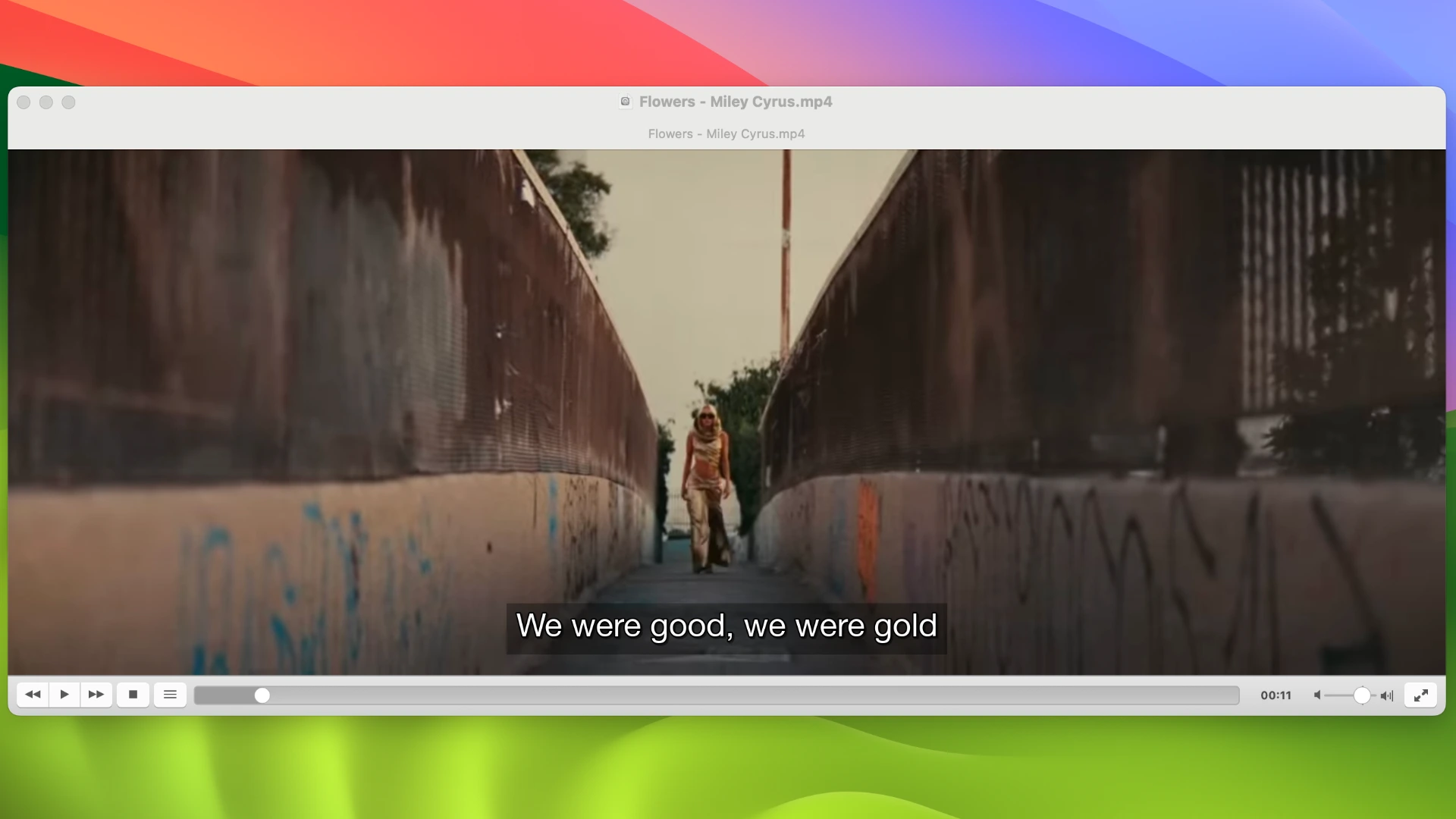
For video files, VLC handles SRT subtitles automatically, the same way it does for any subtitle track.
Step 1: Name the SRT file to match the video file
The SRT filename must match the video filename exactly, with only the extension changed:
Flowers - Miley Cyrus.mp4→Flowers - Miley Cyrus.srt
On macOS and Linux the match is case-sensitive.
Step 2: Place both files in the same folder
Move the SRT file into the same directory as the video file. VLC detects it automatically on playback.
Videos/
└── Miley Cyrus/
    ├── Flowers - Miley Cyrus.mp4
    ├── Flowers - Miley Cyrus.srt
Step 3: Enable the subtitle track
Open the video in VLC. The subtitle track usually loads automatically and lyrics appear as the song plays. If they don't, go to Subtitles > Sub Track > Track 1 to enable it manually.
How to display lyrics in VLC for audio files
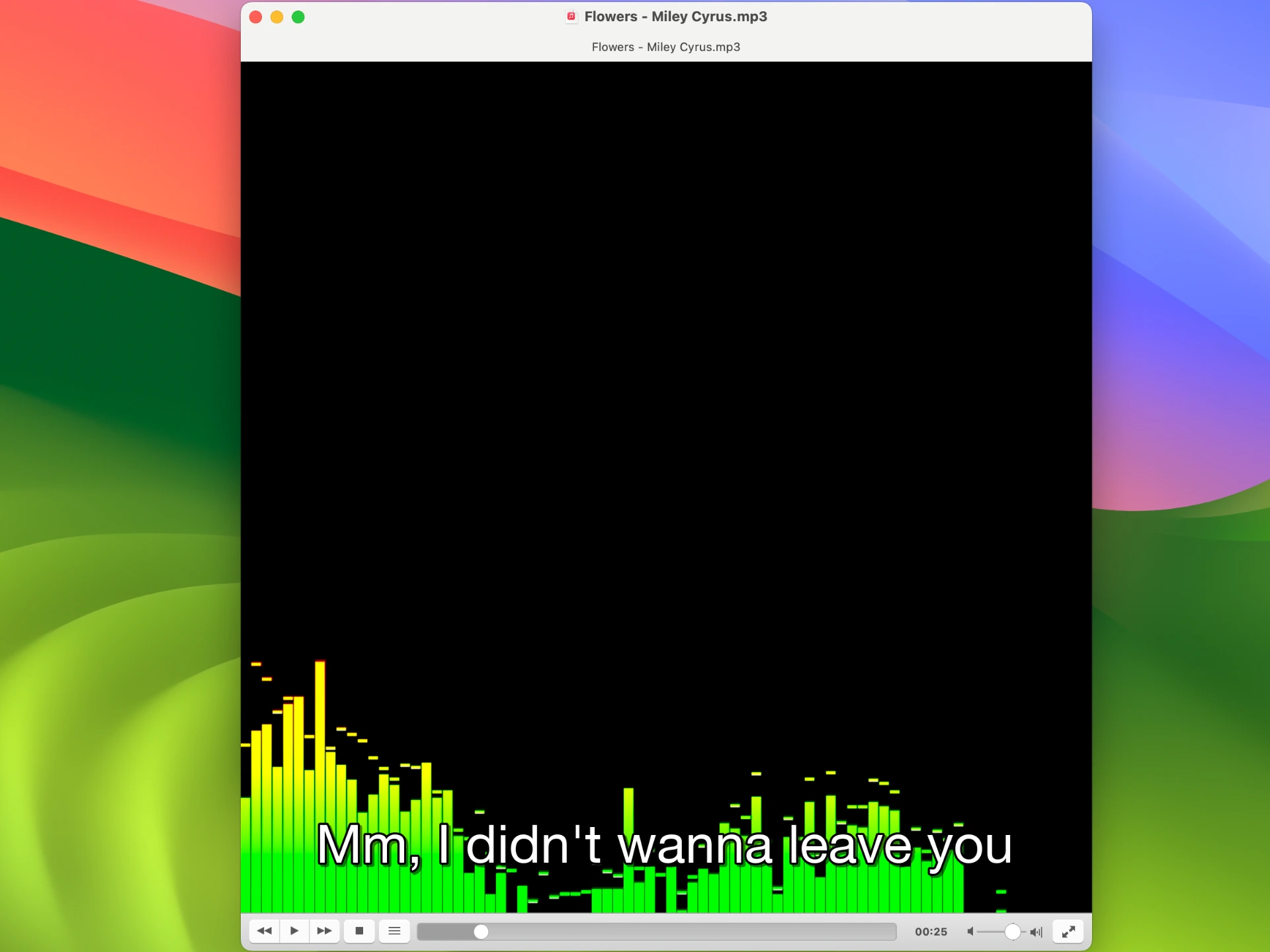
For audio-only files (MP3, FLAC, AAC, etc.), there is one extra step. VLC renders subtitle text on top of a video surface. When playing audio only, there is no video window, so subtitles have nowhere to appear. The fix is to enable any visualization, which opens a visual window that VLC can render the SRT text on.
Step 1: Name the SRT file to match the audio file
Same rule as for video: match the filename exactly:
Flowers - Miley Cyrus.mp3→Flowers - Miley Cyrus.srt
Step 2: Place both files in the same folder
Music/
└── Miley Cyrus/
    ├── Flowers - Miley Cyrus.mp3
    ├── Flowers - Miley Cyrus.srt
Step 3: Enable a visualization
Open the audio file in VLC, then go to Audio > Visualizations and select any option. Spectrum works well, but any visualization will do. A visualization window opens, giving VLC a surface to draw the subtitle text on.
Step 4: Enable the subtitle track
Go to Subtitles > Sub Track > Track 1. The lyrics will appear overlaid on the visualization, synchronized with the music.
How to get an SRT lyrics file
If you don't have any lyrics file yet: use the AI LRC Generator. Upload your audio file, and the tool transcribes the lyrics with accurate timestamps. On the export screen, select SRT as the output format to download a VLC-ready file directly, no conversion needed.
If you already have an LRC file: run it through the LRC to SRT converter. Upload the LRC file, download the SRT. The timestamps carry over exactly.
Frequently asked questions
How do I show lyrics in VLC for an audio file?
Place an SRT file (named identically to the audio file) in the same folder. Open the audio in VLC, enable a visualization via Audio > Visualizations > Spectrum, then turn on the subtitle track via Subtitles > Sub Track > Track 1.
Why do I need a visualization to show lyrics for audio files?
VLC renders subtitle text on a video surface. Audio-only playback has no video window, so subtitles have nowhere to appear. Any visualization (Spectrum, Spectrometer, or others) opens a window that VLC can overlay the SRT text on.
Does this work on macOS and Linux?
Yes. SRT loading and visualizations work the same way in VLC on Windows, macOS, and Linux.
Why aren't my lyrics showing?
For audio files: confirm a visualization is active and the subtitle track is enabled. For all files: verify the SRT filename matches the media filename exactly, including capitalization, and that both files are in the same folder.
The subtitle track menu shows no tracks for my audio file. What's wrong?
You need to enable a visualization first. Go to Audio > Visualizations > Spectrum (or any visualization). Without a visual surface open, VLC has nowhere to render subtitle text and the subtitle menu may show no available tracks.
VLC didn't detect my SRT file automatically. How do I load it manually?
Go to Subtitles > Add Subtitle File and browse to your .srt file. Also double-check the filename matches your audio or video file exactly, as one wrong character, space, or capital letter will prevent auto-detection.
My lyrics are out of sync. How do I fix it?
Go to Tools > Track Synchronization and adjust the Subtitle track synchronization value to shift all lines by a fixed offset in seconds. For a more permanent fix, regenerate the SRT from the AI LRC Generator using your exact audio file so the timestamps are accurate from the start.
Conclusion
Displaying lyrics in VLC comes down to one thing: an SRT file with the same name as your media file, placed in the same folder. For video files, VLC picks it up automatically. For audio files, enable any visualization first so VLC has a surface to render the text on. Use the AI LRC Generator to get an SRT file in one step, or the LRC to SRT converter if you're starting from an existing LRC file.
Found this helpful? Share it with others!
Newsletter