Using WebVTT & SRT in Kapwing
Already exported your WebVTT or SRT files from QuickLRC's AI LRC Generator? This comprehensive guide shows you how to use them in Kapwing to create stunning lyrics videos and engaging karaoke content.
Note: Kapwing only supports WebVTT and SRT subtitle formats.
Creating Lyrics Videos with WebVTT Files
WebVTT (Web Video Text Tracks) files are perfect for displaying lyrics line by line as the song plays. This creates a clean, readable experience that's ideal for lyric videos and sing-along content.
Open Kapwing
Import Your Media Files
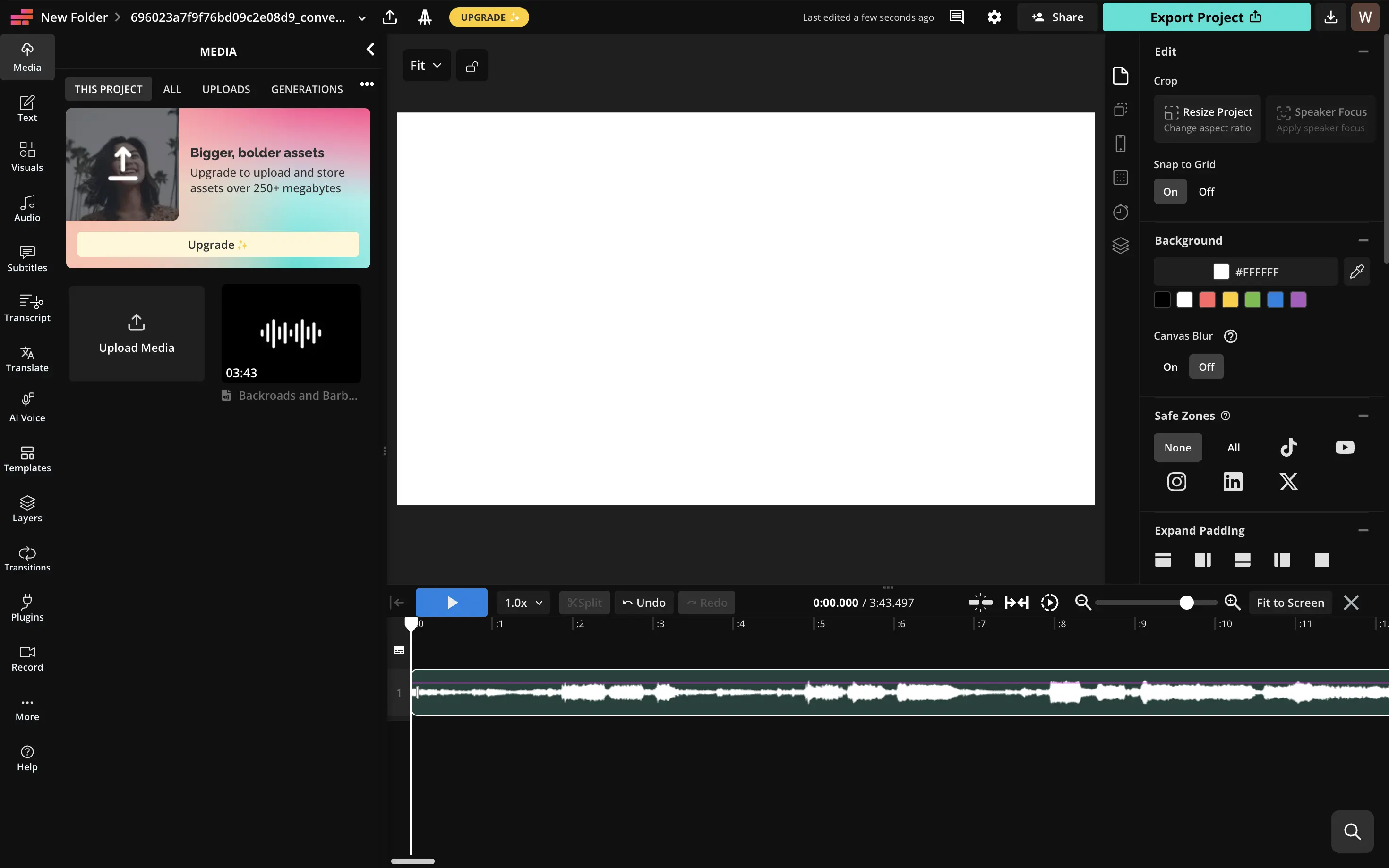
Upload your audio or video file to Kapwing, then add your exported WebVTT file. Kapwing supports WebVTT and SRT subtitle formats.
WebVTT File Format Example:
WEBVTT

00:00:01.679 --> 00:00:07.780
The gravel pops beneath my tires,

00:00:07.780 --> 00:00:13.820
A dusty trail through old desires.

00:00:13.820 --> 00:00:20.519
The fence lines twist, the barbed wire hums,

00:00:20.519 --> 00:00:25.960
Each mile a song where I'm from.

00:00:25.960 --> 00:00:31.899
The sky's so wide, it swallows the sun,

00:00:31.899 --> 00:00:39.539
And the day fades slow, but I ain't done.
Add Song to Timeline
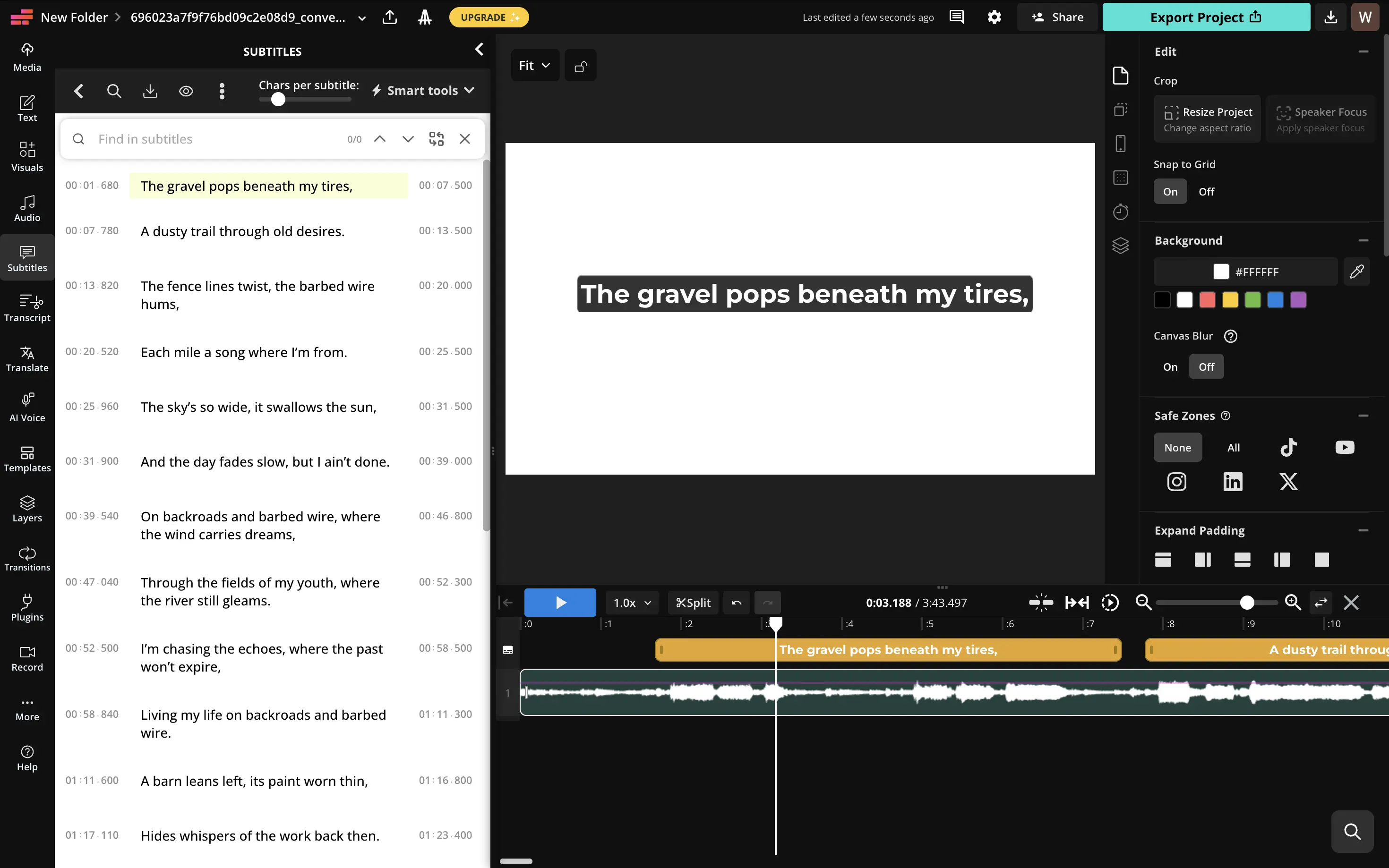
Add WebVTT Subtitles to Timeline
In Kapwing's subtitle panel, upload your WebVTT file. The subtitles will automatically sync with your video timeline based on the timestamps in the file.
Make sure the subtitle track aligns with your audio or video. The WebVTT timestamps should match your media's timing for perfect synchronization.
Once added, you can customize the text appearance using Kapwing's subtitle styling tools: change fonts, colors, add animations, backgrounds, and effects to match your creative vision.
Ensure your WebVTT timestamps match your video's timing. If your song starts at a specific time, adjust the timestamps accordingly in QuickLRC before exporting.
In Kapwing, under the preset styles select "Custom" instead of "default" subtitles because the default subtitles will highlight each word automatically.
Creating Karaoke Videos with SRT Files
Export to SRT Format
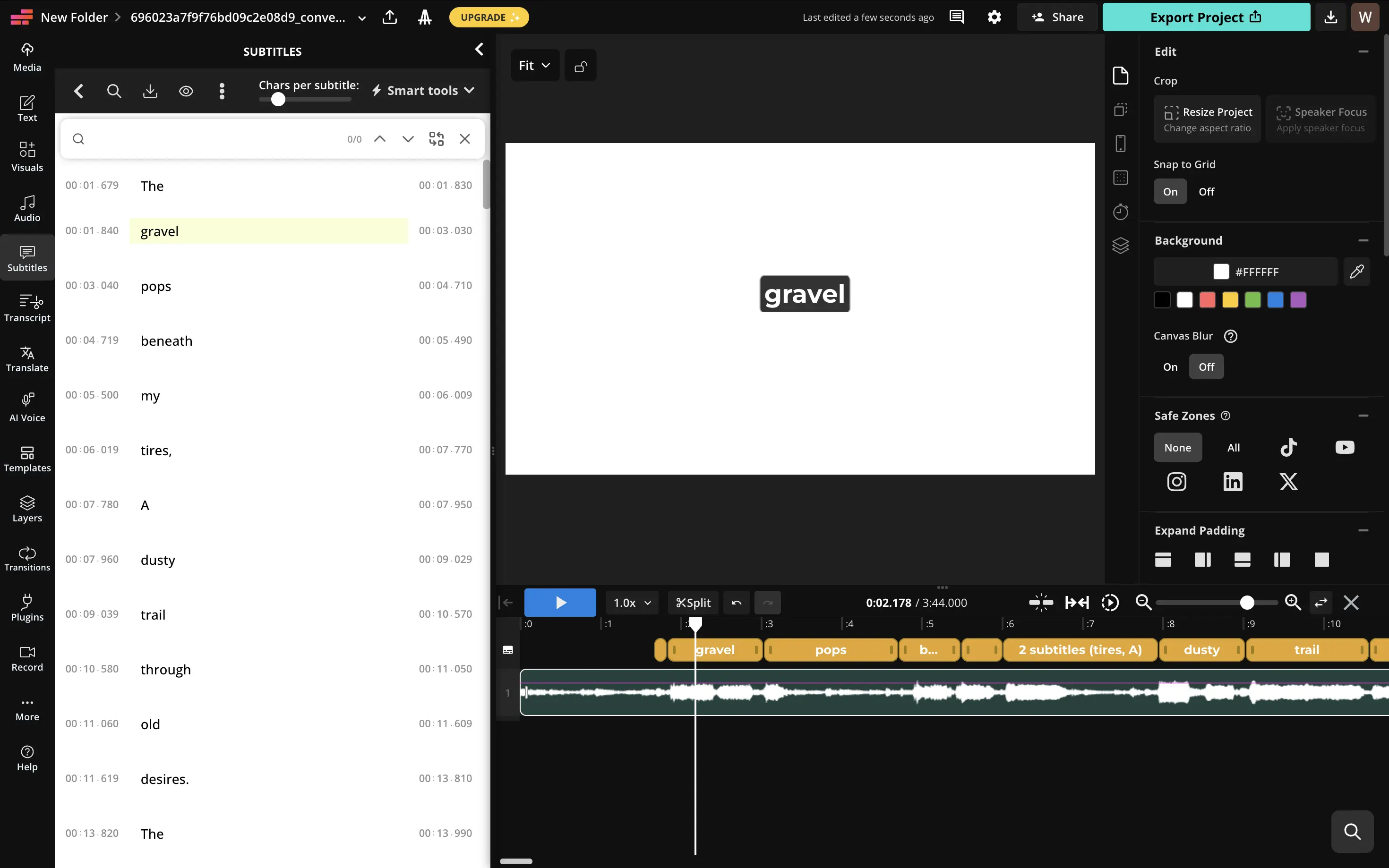
For karaoke-style word-by-word display, export your lyrics to SRT format. SRT files include start and end timestamps for each caption, which Kapwing can use to display text word by word.
SRT File Format Example:
1
00:00:01,679 --> 00:00:01,830
The

2
00:00:01,840 --> 00:00:03,030
gravel

3
00:00:03,040 --> 00:00:04,710
pops

4
00:00:04,719 --> 00:00:05,490
beneath

5
00:00:05,500 --> 00:00:06,009
my

6
00:00:06,019 --> 00:00:07,770
tires,

7
00:00:07,780 --> 00:00:07,950
A

8
00:00:07,960 --> 00:00:09,029
dusty

9
00:00:09,039 --> 00:00:10,570
trail

10
00:00:10,580 --> 00:00:11,050
through
Import and Use SRT in Kapwing
Follow the same import process as with WebVTT files: upload your audio or video file and SRT file to Kapwing's subtitle panel.
The SRT file will appear on the timeline with your media. The difference you'll notice is that the text will appear in shorter segments, creating that karaoke effect.
Customize the text with bold fonts, bright colors, and animations to enhance the karaoke experience. Consider adding a background behind the text for better readability.