How to Edit LRC Files
LRC files are plain text with timestamps — easy to create, but just as easy to end up with timing that's slightly off. Whether you generated an LRC with AI or downloaded one online, you'll often need to tweak timestamps, fix lyrics, or adjust the overall offset. This guide covers the common edits and how to make them.
 Westin Tanley
Feb 11, 2026 · 5 min
Westin Tanley
Feb 11, 2026 · 5 min
Understanding LRC file structure
Before editing, it helps to know what you're looking at. An LRC file is plain text where each line starts with a timestamp in brackets:
[ti:Song Title]
[ar:Artist Name]
[al:Album Name]

[00:12.50]Hello darkness my old friend
[00:17.20]I've come to talk with you again
[00:22.80]Because a vision softly creeping
Metadata tags like [ti:], [ar:], and [al:] at the top are optional and describe the song, while timestamp + lyrics lines follow the format [mm:ss.xx] followed by the lyrics text, and empty lines are allowed and sometimes used to represent instrumental breaks.
Editing LRC files in a text editor
Since LRC is a plain text format, you can open and edit any .lrc file in Notepad, TextEdit, any text editor, or an Online LRC viewer. Simple tasks like correcting a misspelled word, fixing a typo from AI transcription, or removing a duplicate line are straightforward — you find the line, change the text, and save.
However, anything involving timestamps quickly becomes tedious. Adjusting a single timestamp means listening to the audio separately and then manually typing the correct [mm:ss.xx] value back in the editor. Applying a global offset — where every timestamp needs to shift by the same amount — means editing every single line by hand. Splitting one line into two or merging two lines into one requires you to guess new timestamp values with no audio playback to verify them. None of these tools let you listen and check whether your edits actually line up with the music, so you end up saving, loading the file in a player, listening, going back to edit, adjusting, and repeating until it sounds right.
For quick text corrections these tools work fine, but for any timing work the process is slow, error-prone, and frustrating.
How to edit LRC files with a dedicated LRC editor
The fastest way to edit LRC files is with an editor that plays audio alongside the lyrics so you can hear whether the timing is right.
Step 1: Open your LRC file
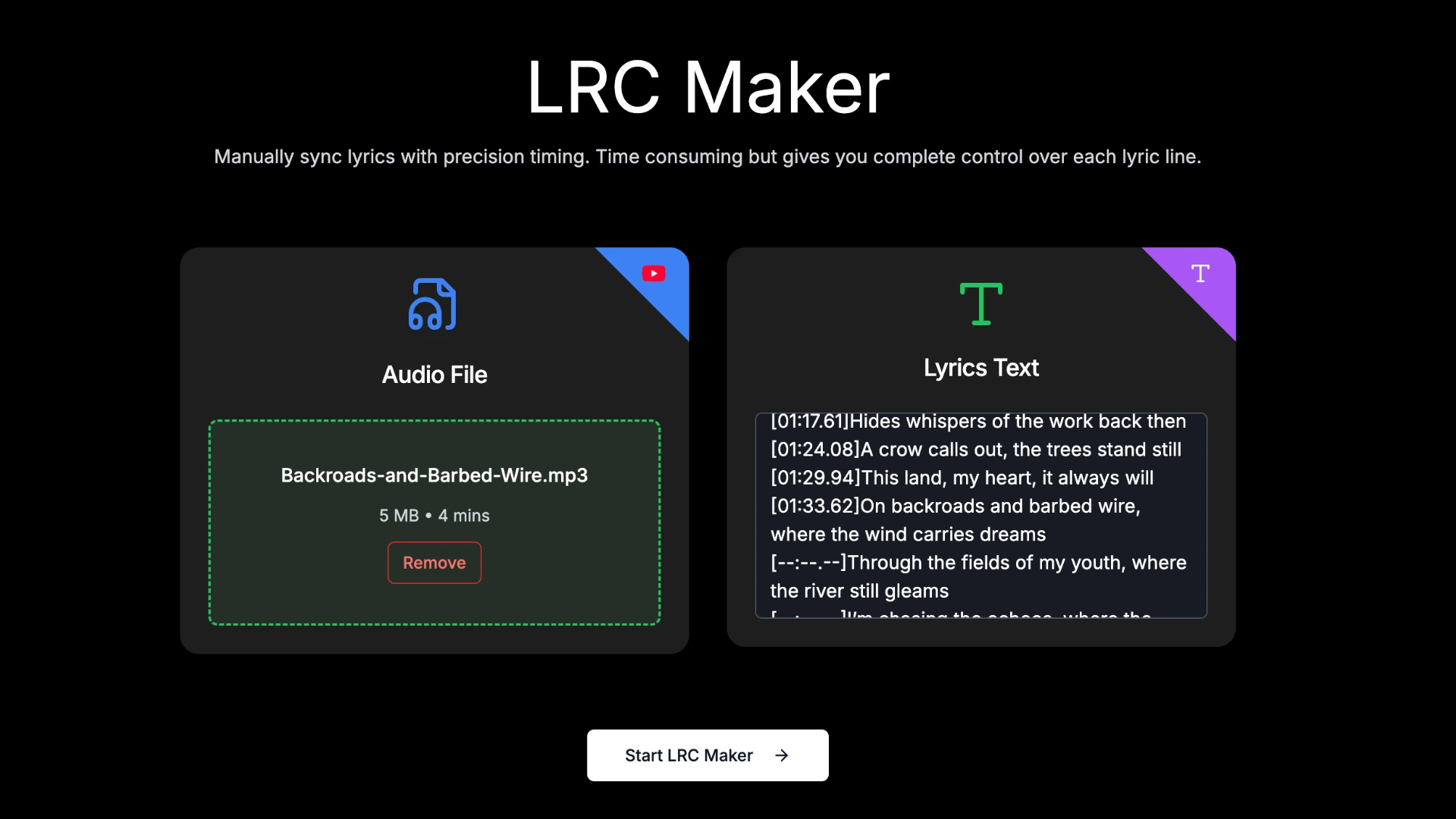
Go to QuickLRC LRC Maker and upload your audio file. Then import your existing LRC file — the editor will display each line with its timestamp.
Step 2: Play audio and identify timing issues
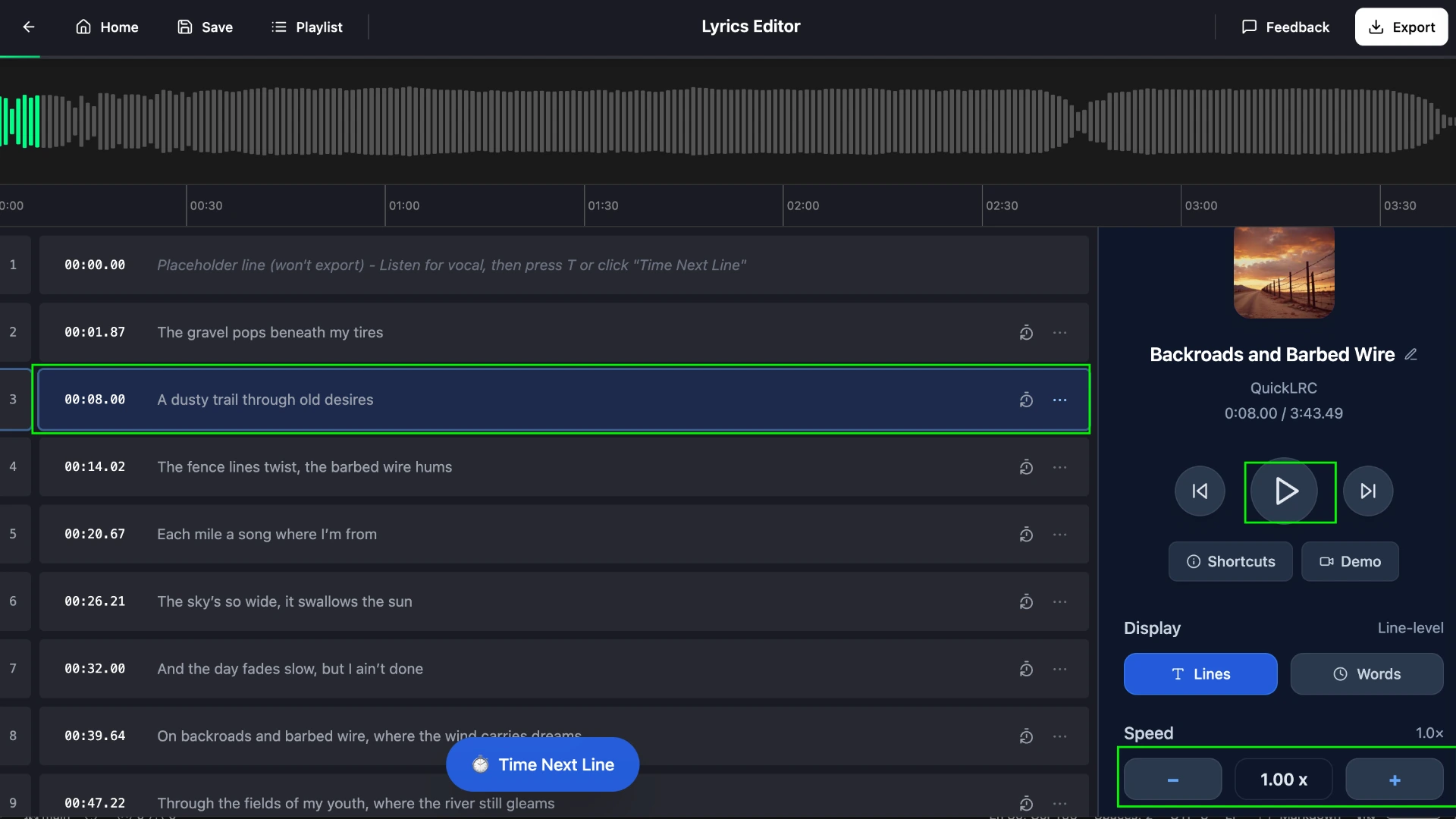
Hit play and watch the lyrics highlight as the song plays. If the song is too fast, you can slow down the playback speed to catch timing issues more easily. Any line that highlights too early or too late needs a timestamp fix.
Step 3: Fix individual timestamps
Clear a line's timestamp by clicking the clock button on the right end of the line. The highlight will move to the line above, and the audio will play from that line's beginning. As you listen, you will hear when the next line's vocal starts — tap to sync at that moment to mark the new timestamp.
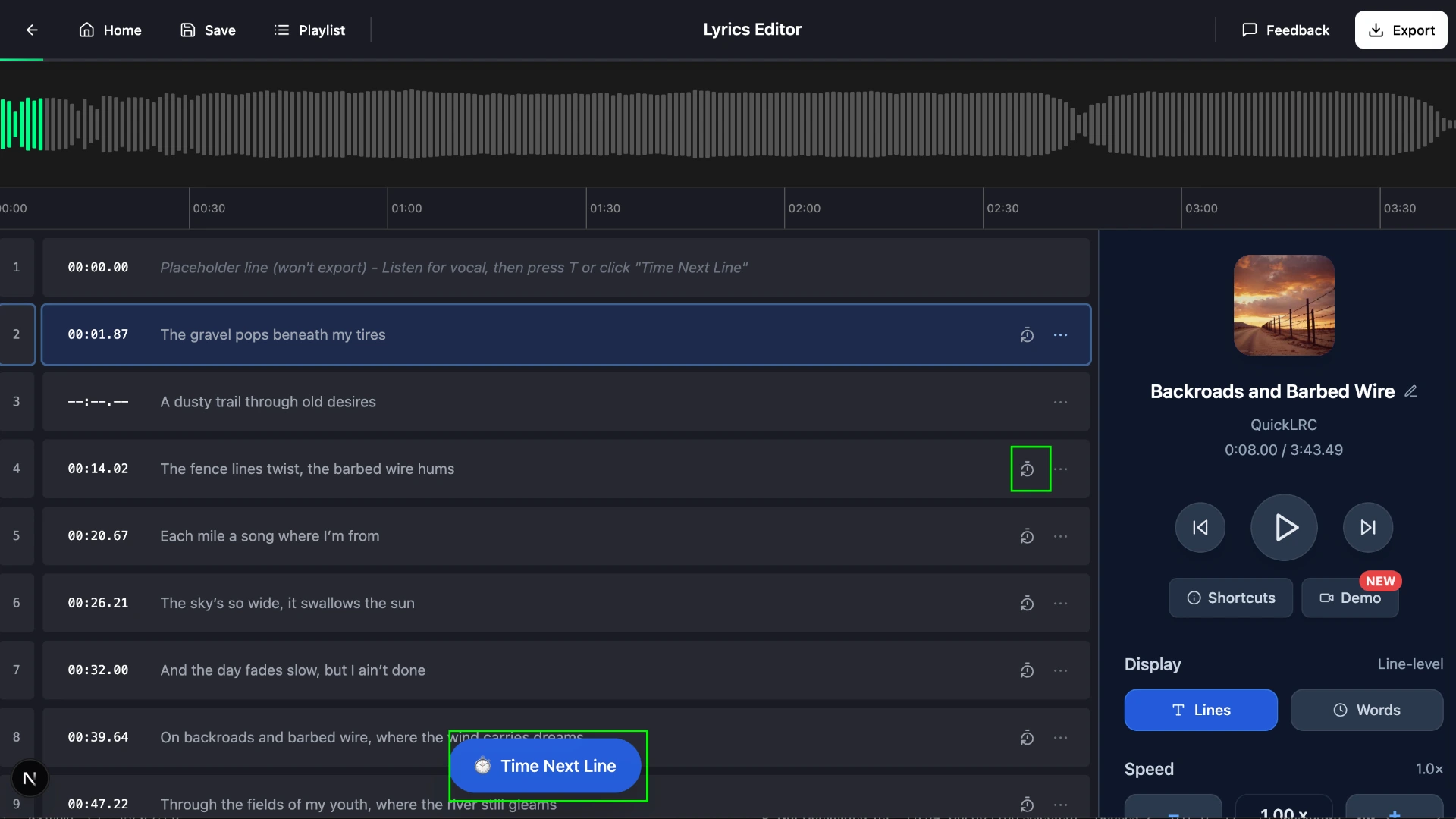
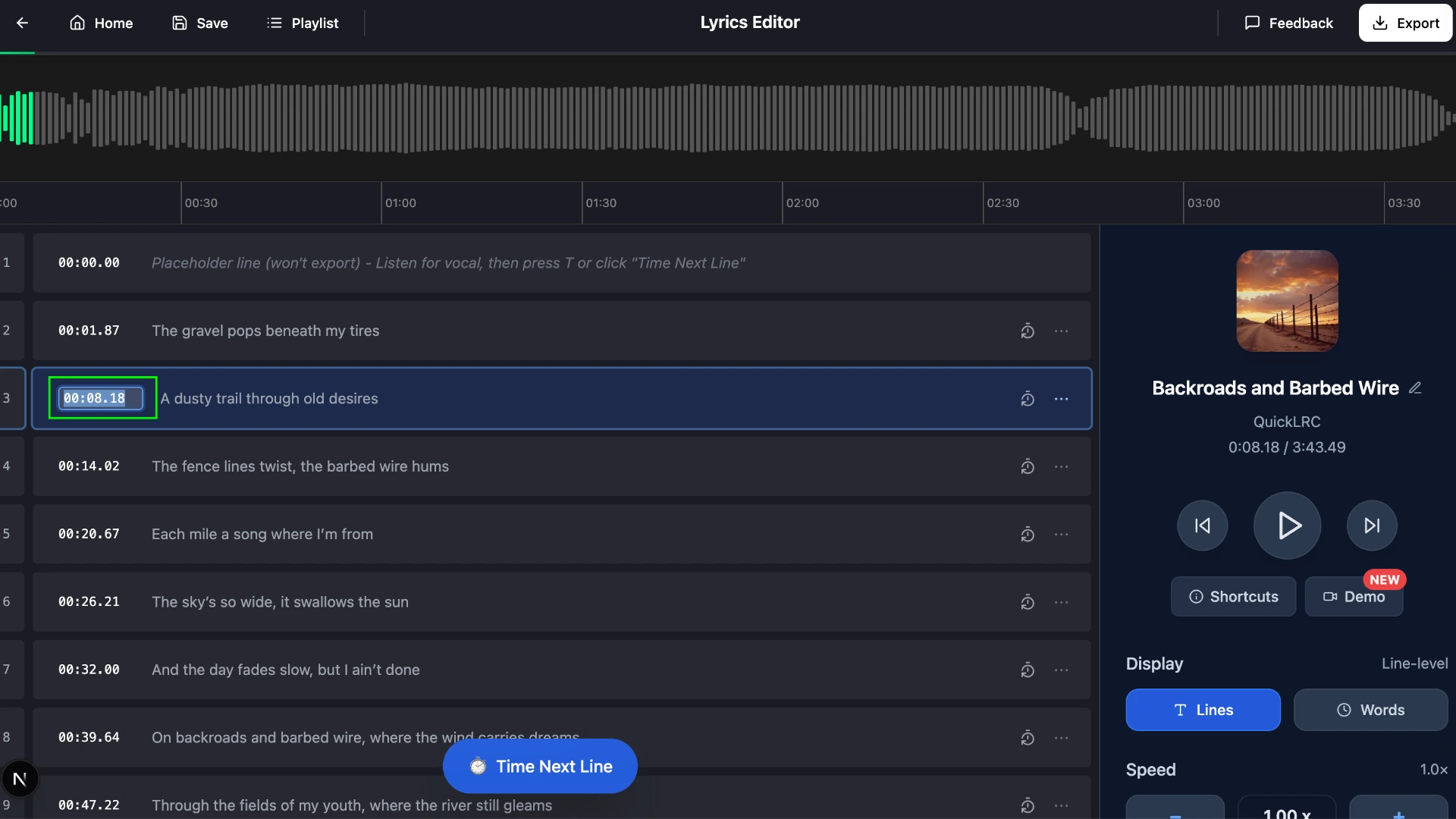
If you need a very precise timestamp, you can double-click on a line's timestamp and type the exact value yourself. This gives you full control down to the hundredth of a second.
Step 4: Apply a global offset if needed
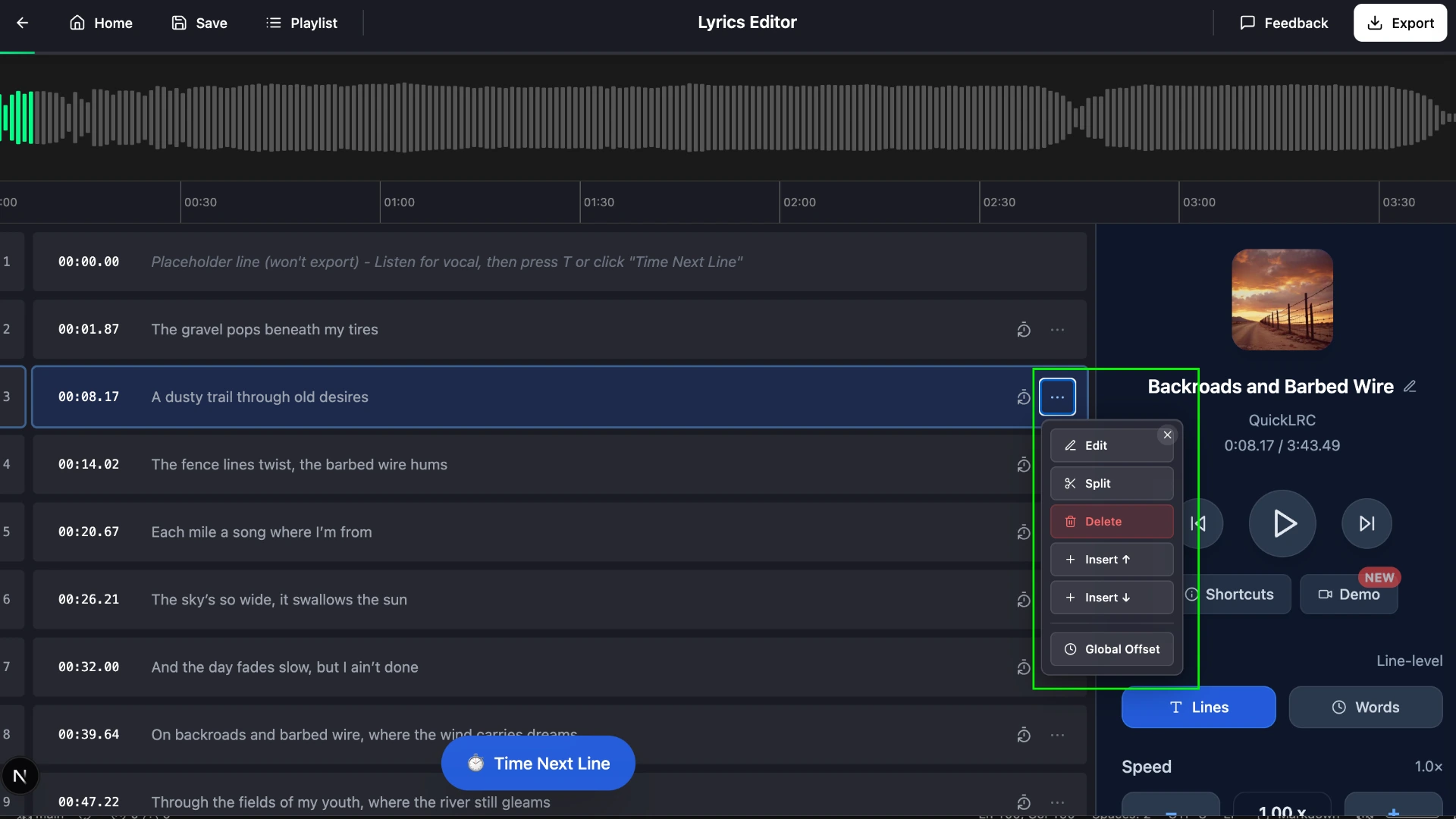
Click the three-dots button at the right end of any lyrics line to open the float toolbar, then click the "Global Offset" button.
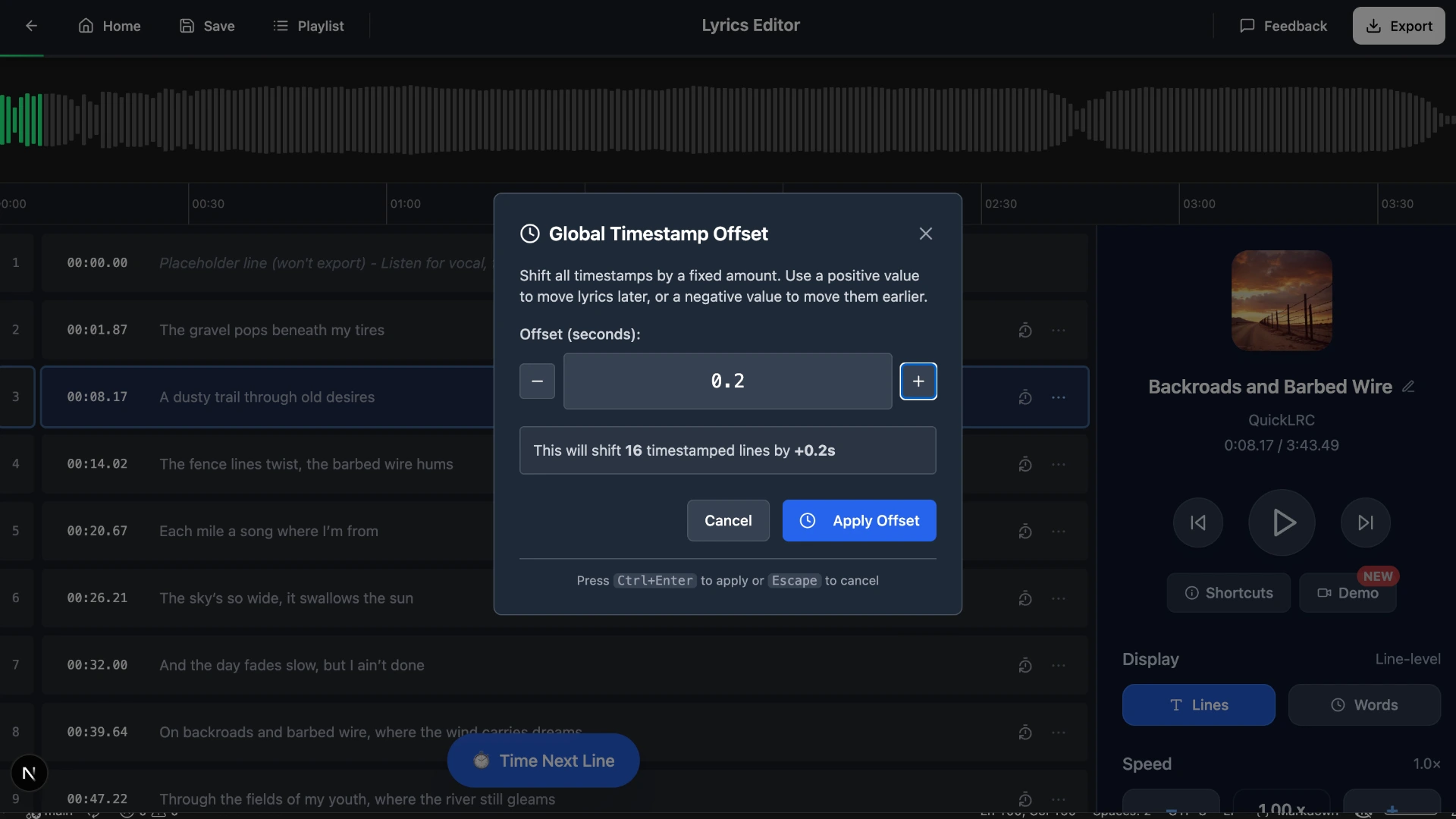
This lets you shift all timestamps at once by a fixed amount. It is useful when your audio file has a different intro than the one the LRC was originally created for, so every line is consistently early or late by the same amount.
Step 5: Edit, split, insert, and delete lyrics
The float toolbar also gives you full control over your lyrics text — the same things a text editor can do, but without leaving the editor. Use "Edit" to fix typos or rewrite a line, "Split" to break one long line into two separate lines with their own timestamps, "Insert ↑" and "Insert ↓" to add a new line above or below, and "Delete" to remove a line entirely.
Step 6: Use keyboard shortcuts to speed up editing
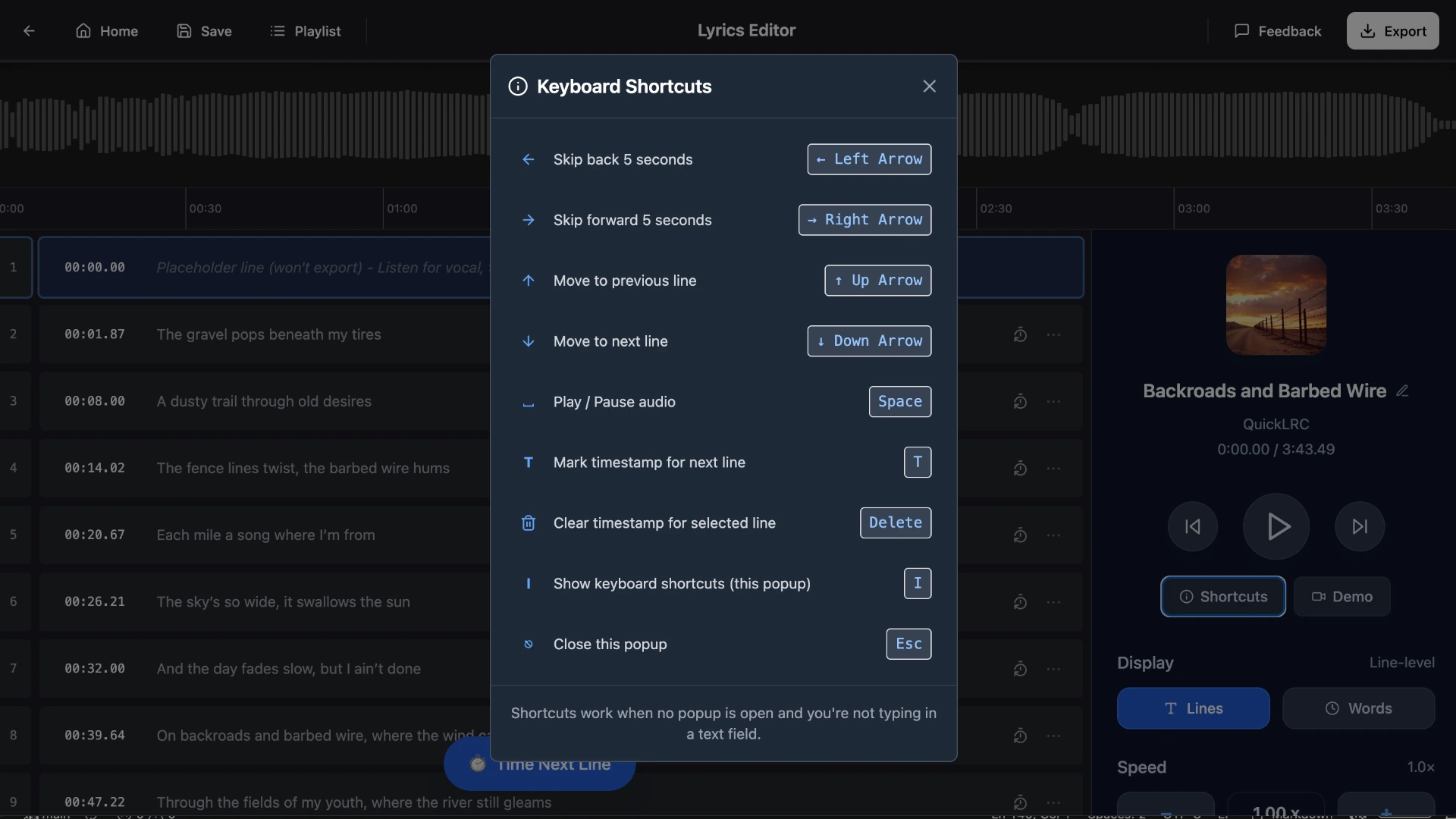
The LRC Maker supports keyboard shortcuts so you can edit without touching the mouse. Press I to open the shortcuts popup and see all available shortcuts.
Step 7: Download your LRC file
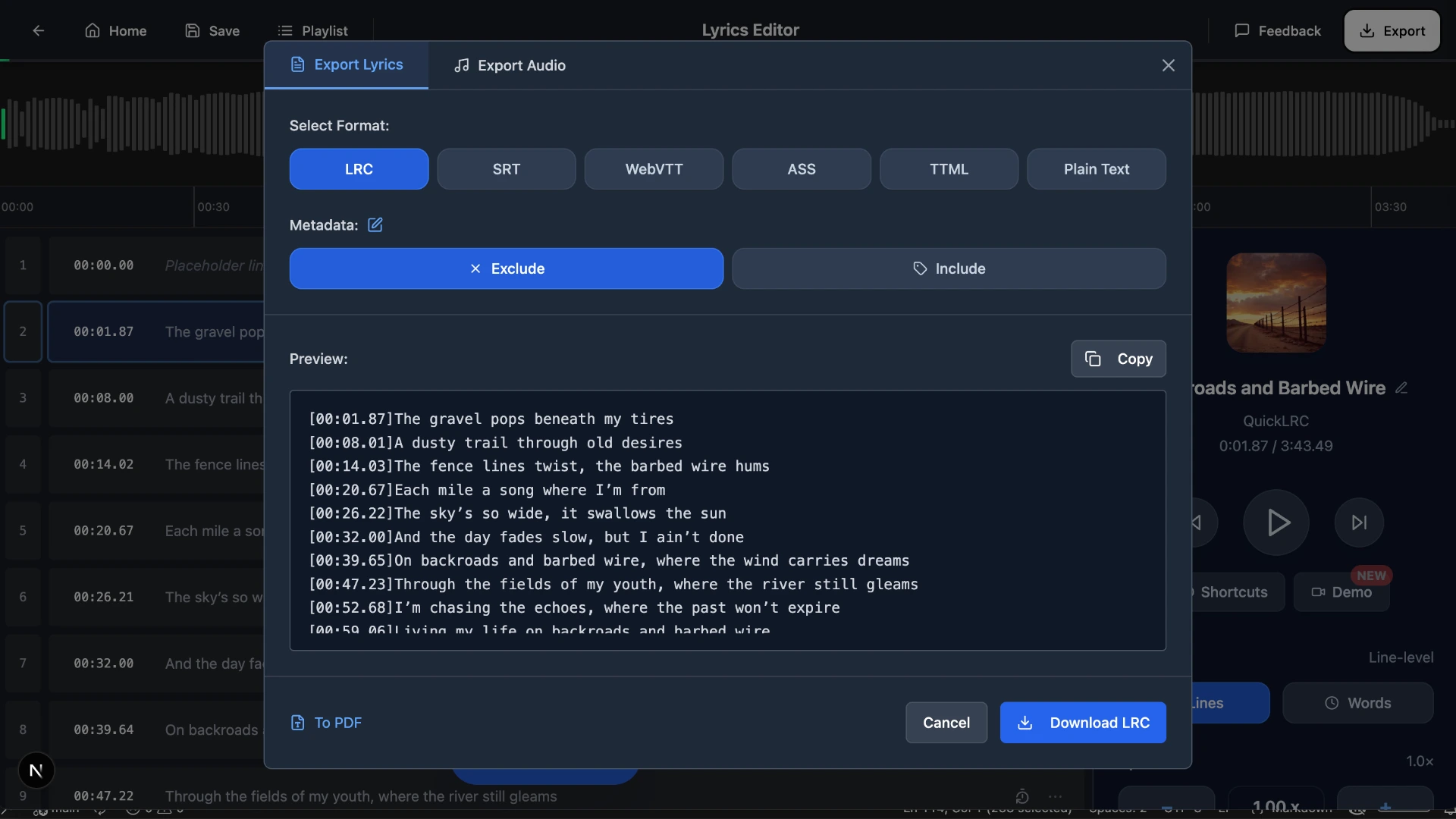
Click the export button at the top right corner to preview the final sync, then export and download your corrected LRC file. You can also export to SRT, WebVTT, ASS, or other subtitle formats if needed.
Frequently asked questions
Can I edit an LRC file in Notepad or a text editor?
Yes. LRC files are plain text, so you can open them in Notepad, TextEdit, or any text editor to fix typos and correct lyrics. However, editing timestamps in a text editor is tedious because you cannot hear the audio while you edit — a dedicated LRC editor is much faster for timing work.
How do I fix a single wrong timestamp in an LRC file?
In QuickLRC's LRC Maker, clear the timestamp by clicking the clock button on the right end of the line, then use tap-to-sync to re-time it while the audio plays. You can also double-click the timestamp to type an exact value manually.
How do I fix LRC timestamps that are all off by the same amount?
Use the Global Offset feature. Click the three-dots button on any lyrics line to open the float toolbar, then click "Global Offset". Enter a positive or negative value in seconds to shift all timestamps at once.
What else can I do with the float toolbar?
The float toolbar lets you edit a line's text, split one line into two, insert a new line above or below, or delete a line. It gives you the same control as a text editor without leaving the LRC editor.
What formats can I export my edited LRC file to?
You can export as LRC, SRT, WebVTT, ASS, and other subtitle formats. Click the export button at the top right corner of the editor to preview and download.
What's the correct LRC timestamp format?
The standard format is [mm:ss.xx] where mm is minutes, ss is seconds, and xx is hundredths of a second. For example, [01:23.45] means 1 minute, 23.45 seconds.
Conclusion
Editing LRC files comes down to two things: fixing text and fixing timestamps. A text editor handles the text side, but for timestamp work you need an editor that plays audio alongside the lyrics. QuickLRC's LRC Maker lets you clear and re-tap timestamps, apply global offsets, and edit lyrics all in one place — so you can hear every change instead of guessing.
Found this helpful? Share it with others!
Newsletter