How to Extract Lyrics from YouTube
Want to get the lyrics from your favorite YouTube music videos? Whether you're learning a new song, creating karaoke files, or building a lyrics collection, this guide will show you the fastest way to extract and sync lyrics from any YouTube video.

 Westin Tanley
Feb 1, 2026 · 3 min
Westin Tanley
Feb 1, 2026 · 3 min
Why extract lyrics from YouTube
YouTube is home to millions of music videos, live performances, and audio tracks. While some videos include captions or subtitles, these are often auto-generated and inaccurate for song lyrics. Auto-generated captions frequently misinterpret sung words, especially with fast vocals or heavy instrumentation.
By extracting lyrics yourself, you get accurate text with synced timestamps that display in perfect sync with the music in your favorite player. Once you have the lyrics file, you can use it with your local music library without needing YouTube. This also makes it easy to build your own karaoke collection with properly timed lyrics.
How to extract lyrics from YouTube step by step
With QuickLRC Lyrics Extractor, you can extract lyrics directly from a YouTube URL—no need to download the audio first.
Step 1: Paste the YouTube URL
Go to QuickLRC Lyrics Extractor and paste the YouTube video URL into the input field.
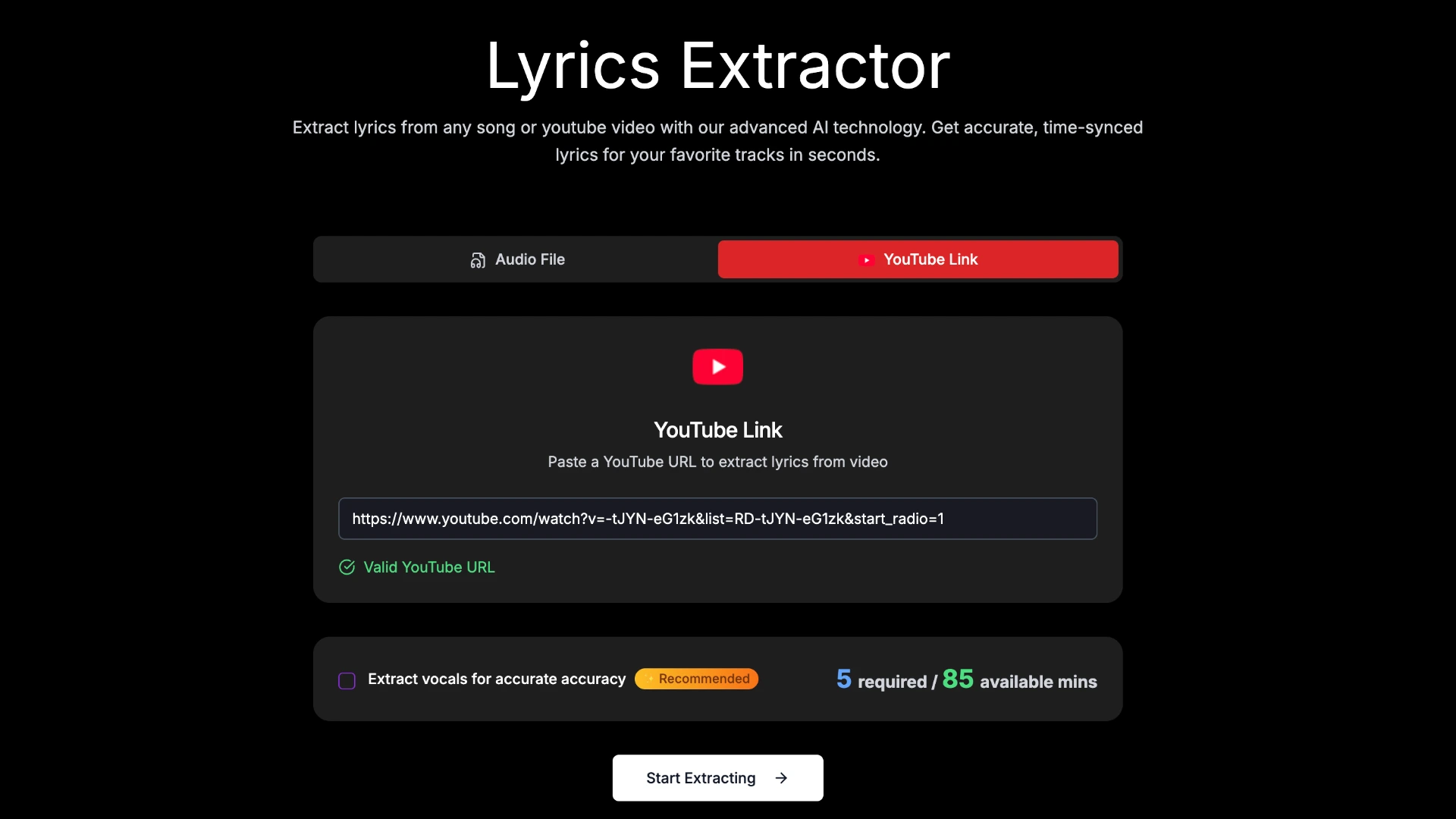
- Tip: If the background music is loud or noisy, check the "Extract vocals" option for better accuracy.
Step 2: AI processing
Click "Start Extracting" and wait for the AI to process. The AI will automatically fetch the audio, transcribe the vocals, and generate synced timestamps.
Step 3: Live preview
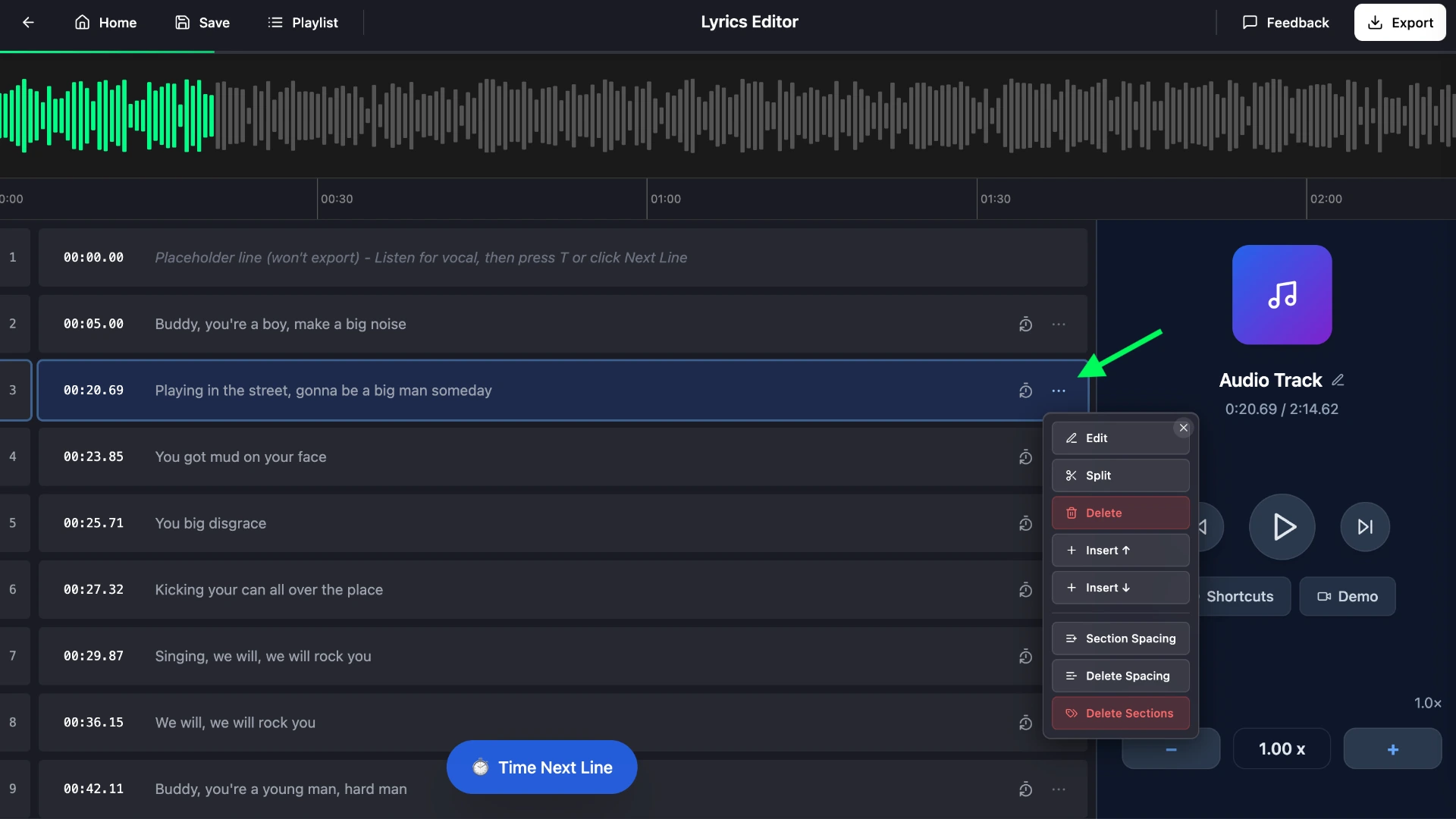
Preview the generated lyrics in the editor. Play the audio to verify the sync and make any adjustments if needed.
While AI transcription is highly accurate, you may occasionally need to fix missing words or split long sentences. The editor makes this easy:
- Double-click any lyrics line to edit the text
- Double-click the timestamp to adjust the timing
- Use the floating toolbar to edit, delete, or split lyrics (splitting creates a new line without a timestamp—click "Time Next Line" when you hear the vocal to mark it)
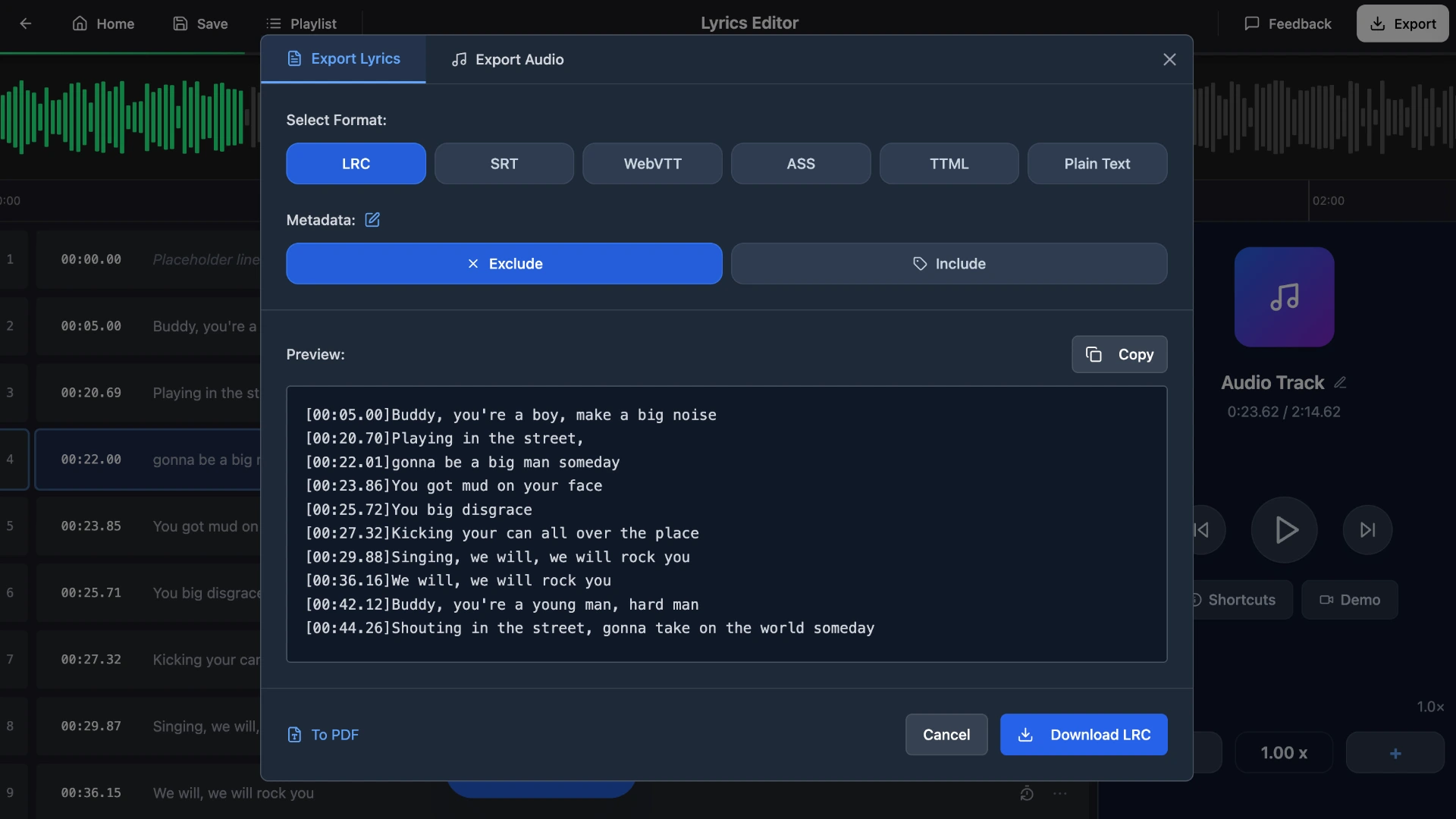
Step 4: Export
Click the export button in the top right corner to download your lyrics in LRC, SRT, plain text, or any other formats we provide.
Frequently asked questions
How long does it take to extract lyrics?
For a typical 3-4 minute song, the AI processes and generates synced lyrics in about 30-60 seconds. Longer videos may take a bit more time.
Can I extract lyrics in languages other than English?
Yes, the AI supports multiple languages including Spanish, French, German, Japanese, Korean, and many more. Accuracy may vary depending on the language and audio clarity.
How accurate is AI transcription for song lyrics?
AI transcription works well for clear vocals with accuracy of 95%+. For songs with heavy instrumentation, background vocals, or unclear pronunciation, you may need to make manual adjustments in the editor.
Is it legal to extract lyrics from YouTube?
Extracting lyrics for personal use is generally acceptable under fair use principles. However, redistributing copyrighted lyrics commercially may violate copyright laws. Always respect the rights of artists and songwriters.
Can I extract lyrics from live performances or concert videos?
Yes, the AI works with any YouTube video containing vocals. Live performances may require more manual adjustments due to crowd noise and variations from studio versions.
Conclusion
Extracting lyrics from YouTube has never been easier. With QuickLRC Lyrics Extractor, just paste a YouTube URL and let the AI do the rest—no downloading required. Whether you're building a lyrics collection, creating karaoke files, or just want to sing along with accurate words, you can get synced lyrics in seconds.
Found this helpful? Share it with others!
Newsletter