How to Fix Lyrics Timing in LRC Files
LRC timing issues are common, and most are straightforward to fix. A file that worked perfectly with one version of a song can be completely off with another, and AI-generated LRC files sometimes drift after the first chorus. Here is how to diagnose and fix LRC timing across three common scenarios.

 Westin Tanley
May 25, 2026 · 5 min
Westin Tanley
May 25, 2026 · 5 min
Why LRC timing goes wrong
LRC files are built against a specific version of an audio file. When something about that audio is different, whether a longer intro, a slightly different mix, or a different tempo, the timestamps no longer line up.
The most common causes:
- Different audio version. Streaming platforms sometimes have different edits of the same song. A radio edit might have a shorter intro than the album version, making every lyric line appear too early or too late.
- AI transcription drift. AI-generated LRC files can drift when the model loses track of timing partway through a long or instrumentally complex song. The first verse is fine; the bridge is a full second off.
- Manual sync errors. When creating an LRC file by hand, a mistimed tap can throw off one line, or if auto-advance was on, every line after it.
- Copied from a different source. An LRC downloaded from a lyrics database might have been created for a different file format with slightly different audio encoding.
Understanding which of these happened tells you exactly what kind of fix to apply.
Diagnosing the type of timing problem
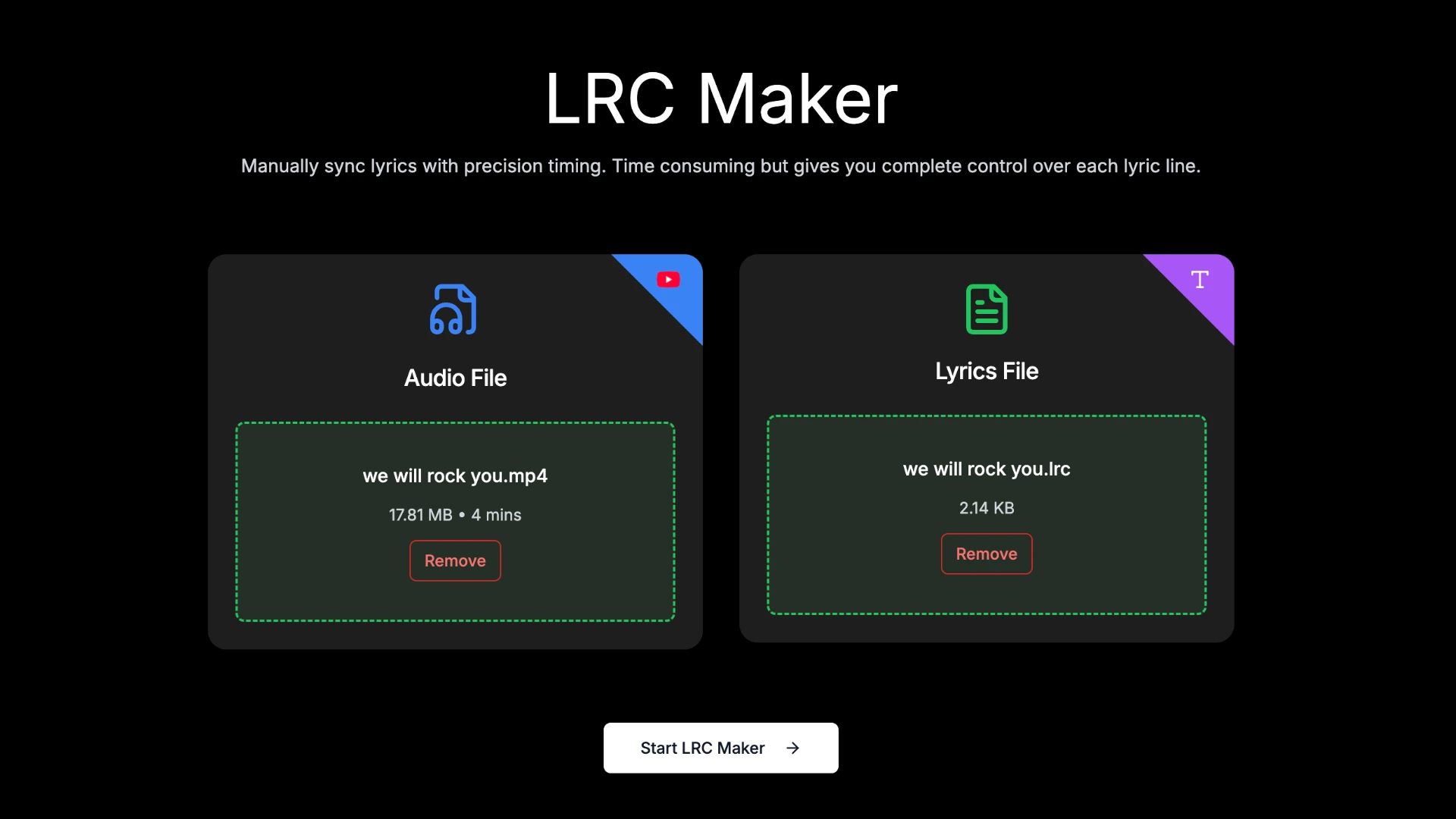
Before you fix anything, load your audio file into QuickLRC LRC Maker and import your LRC file. Hit play and listen through a few sections.
Ask yourself:
- Is every line off by roughly the same amount? That is a global offset problem.
- Are only a few specific lines wrong while others are fine? Those individual timestamps need to be corrected.
- Does the timing start correct and then gradually fall behind or rush ahead? That is drift, and it requires fixing a range of lines from the point where it starts.
Most files have one of these three patterns. Occasionally you will have a combination of a global offset plus some additional drift. In that case, fix the global offset first, then deal with the remaining drift.
Fix 1: Global offset
A global offset is the simplest fix. Instead of correcting every line one by one, you shift all timestamps at once by a fixed number of seconds.
- Click the three-dots button at the right end of any lyrics line to open the float toolbar.
- Click Global Offset.
- Enter your offset value. Use a positive number to push all timestamps later (if lyrics appear too early), or a negative number to pull them earlier (if lyrics appear too late).
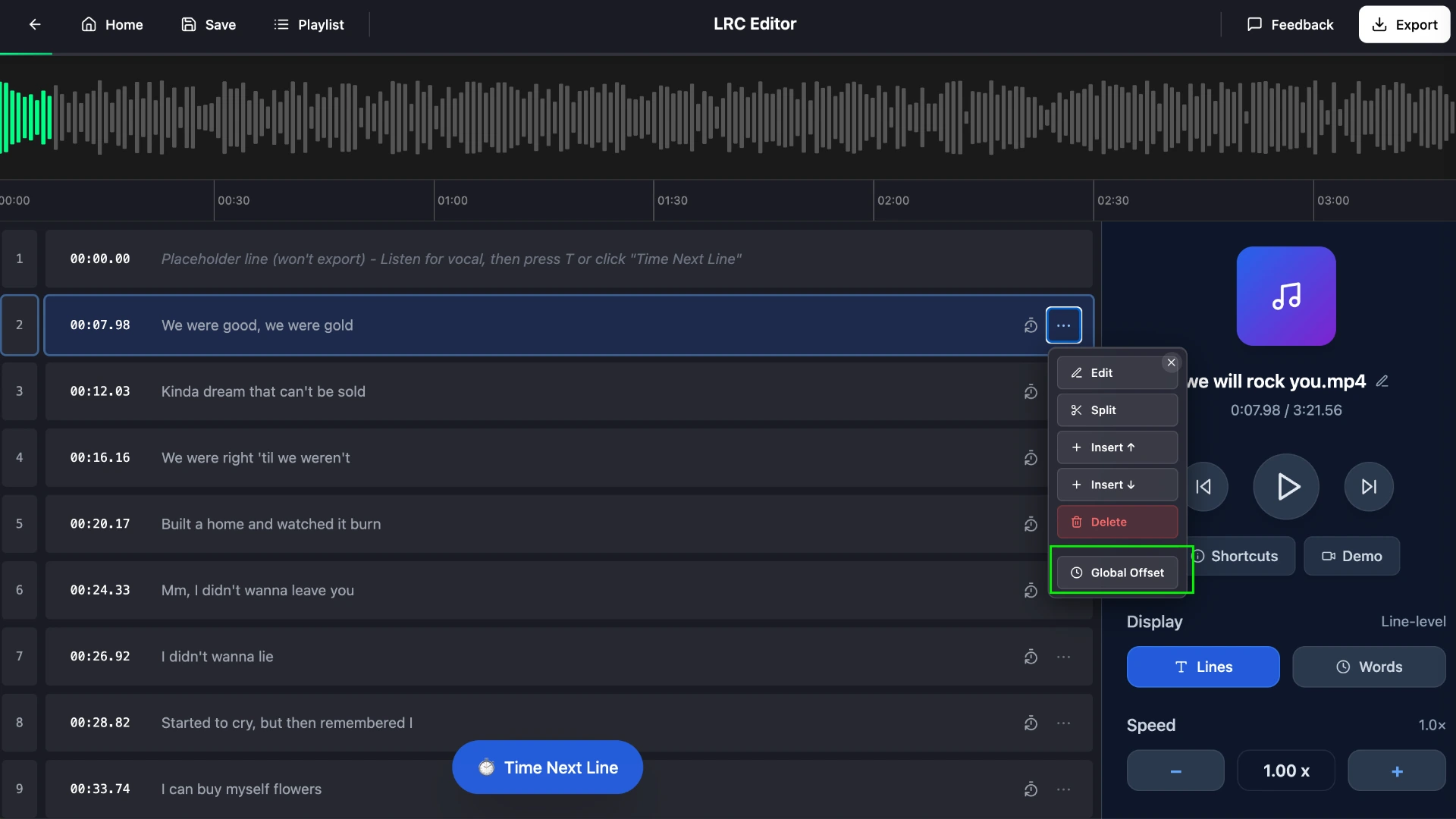
To find the right value, pause on a line you know well, note how many seconds early or late it appears relative to the vocal, and enter that number. You can apply multiple small adjustments until it sounds right. The offset dialog stays accessible throughout.
Fix 2: Individual timestamps
When only a few lines are mistimed, the quickest approach is to clear those timestamps and re-tap them while the audio plays.
- Play the song and identify which line is wrong.
- Click the clock button at the right end of that line to clear its timestamp. The editor will move focus to the line above and begin playing from there.
- Listen, and when you hear the vocal for the cleared line begin, tap the sync button to stamp a new timestamp.
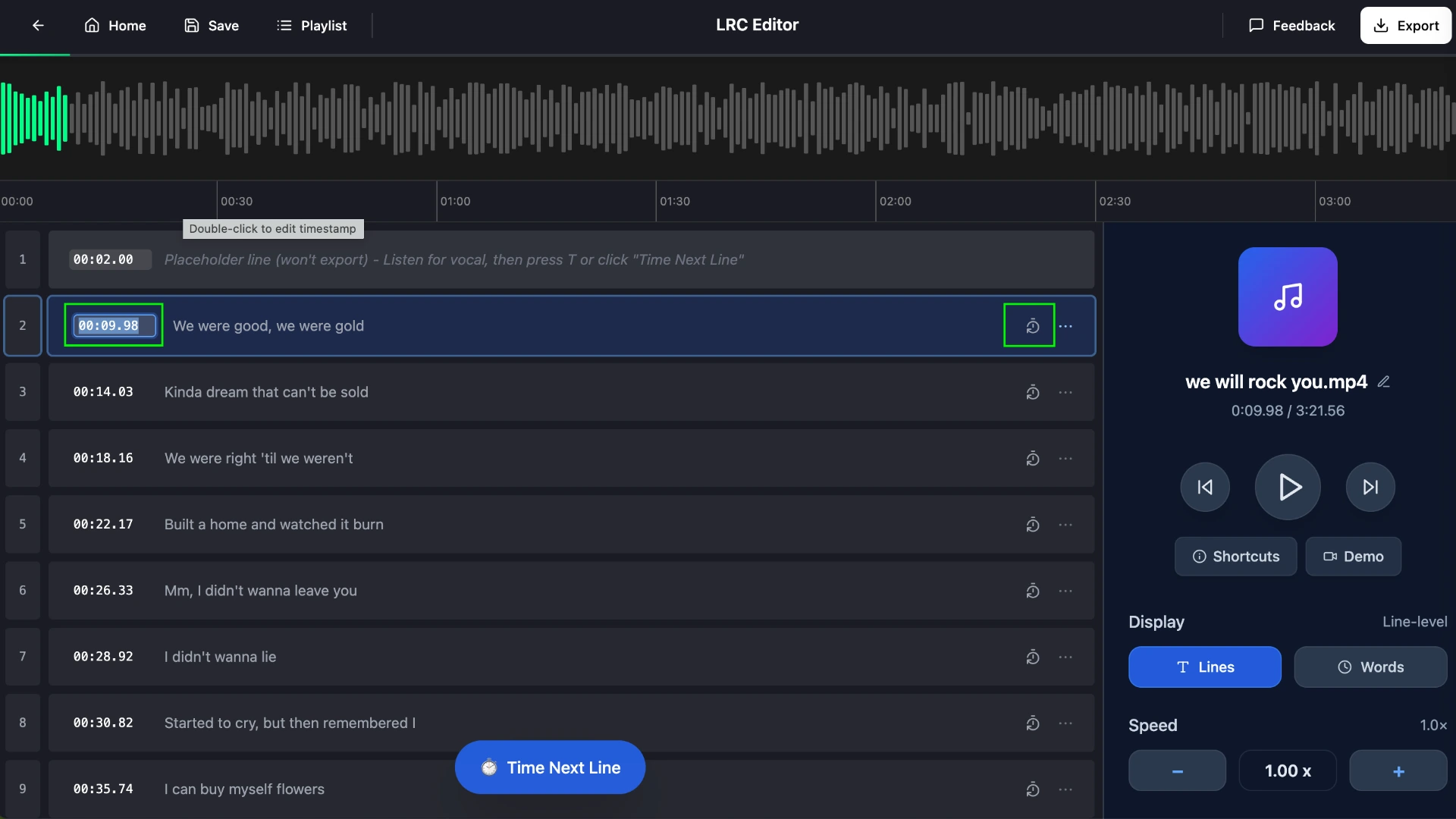
If you need a very precise value, for example a line that starts on a specific beat, you can double-click the timestamp and type the exact [mm:ss.xx] value instead.
Repeat for each incorrect line. For a handful of fixes this is fast; for large numbers of corrections, consider whether a global offset or drift fix would be more efficient.
Fix 3: Drift
Drift is the trickiest problem because there is no single offset that fixes the whole file. The timestamps gradually fall out of sync, meaning each line after a certain point needs its own correction.
The most efficient approach:
- Play through the song until you reach the point where timing starts to go wrong. Note roughly which line it is.
- From that line forward, clear each timestamp and re-tap it to the audio.
- Work through the remaining lines in order, tapping each one as the vocal starts.
If the drift is severe, with many lines wrong and the correction growing larger with each line, it is often faster to clear all timestamps from the drift point onward and re-tap the second half of the song from scratch using the tap-to-sync workflow in QuickLRC LRC Maker.
Once you have finished, play the full song from the beginning to verify the transitions between the corrected and uncorrected sections sound smooth.
Frequently asked questions
Why are my LRC timestamps wrong?
LRC timestamps go wrong for a few reasons: the LRC was made for a different audio version with a longer or shorter intro, the AI transcription drifted partway through the song, or a manual sync error threw off one line and everything after it. Identifying which of these happened tells you exactly which fix to apply — global offset, individual line correction, or re-tapping from the drift point.
Why are all my LRC timestamps off by the same amount?
The most common reason is that your audio file has a different intro length than the version the LRC was made for. A song with a 3-second intro on one streaming platform might have a 5-second intro on another. Use Global Offset to shift all timestamps at once by the difference.
How do I fix LRC timing that starts correct but drifts later in the song?
Drift usually means the LRC was created from a different audio version, often with a slightly different tempo or edit. You need to fix the drifted lines individually by clearing their timestamps and re-tapping them to the audio.
How do I shift all LRC timestamps at once?
Use the Global Offset feature in QuickLRC LRC Maker. Click the three-dots button on any lyrics line to open the float toolbar, then click Global Offset. Enter a positive number to push timestamps later, or a negative number to pull them earlier.
Can I fix LRC timing in a text editor?
Technically yes, but it is very slow. You would need to manually calculate new timestamp values for each line without hearing the audio. A dedicated LRC editor like QuickLRC is much faster because you can play the song and re-tap timestamps in real time.
What does a correct LRC timestamp look like?
The standard format is [mm:ss.xx], where mm is minutes, ss is seconds, and xx is hundredths of a second. For example, [01:23.45] marks 1 minute and 23.45 seconds. If timestamps are formatted incorrectly, most players will ignore them.
Conclusion
Most LRC timing problems are one of three things: a uniform global offset, a handful of wrong individual lines, or drift that sets in partway through. Diagnosing which one you have takes about 30 seconds of listening. Once you know, the fix is straightforward using QuickLRC LRC Maker. Global offset corrects everything at once; individual line fixes handle the outliers; re-tapping from the drift point forward cleans up the rest.
Found this helpful? Share it with others!
Newsletter