MP3 to Text: How to Convert a Song to Lyrics
Converting MP3 to text is one of the fastest ways to get the lyrics out of any song. Whether you're trying to transcribe a track you love, create an LRC file for a music player, or just capture the exact words from a recording, this guide shows you how to do it using AI transcription.

 Westin Tanley
Apr 20, 2026 · 4 min
Westin Tanley
Apr 20, 2026 · 4 min
What "MP3 to text" means for music
When people search for "MP3 to text," they usually mean one of two things: converting a podcast or speech recording into a written transcript, or extracting the lyrics from a song. This guide focuses on the second: pulling the sung words out of a music file and turning them into readable, usable text.
Lyrics aren't stored inside most MP3 files by default. The audio is just a waveform. To get the words, you have to listen and transcribe, or use an AI model that can detect and interpret vocals automatically.
This is exactly what QuickLRC Lyrics Extractor does. Upload your MP3 to extract lyrics from it, and the AI listens to the vocals and produces a text transcript with timestamps. The result is ready to use in a music player, a lyrics video, or anywhere else you need the text.
How to convert MP3 to text step by step
Step 1: Upload your MP3 file
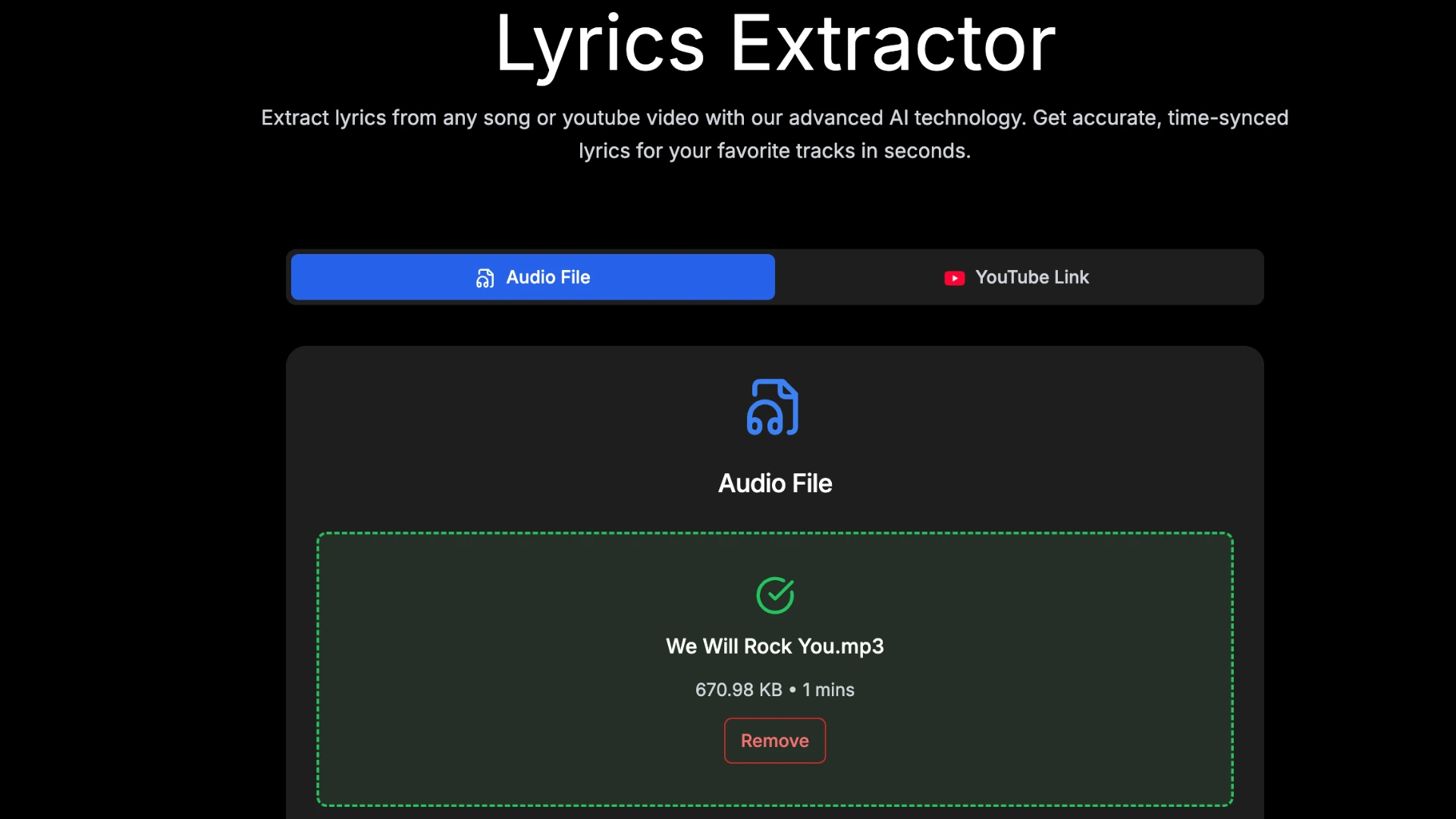
Go to QuickLRC Lyrics Extractor and upload your audio file. MP3 is fully supported, as are WAV, FLAC, M4A, and OGG.
If the background music is loud relative to the vocals, check the Extract vocals option before you proceed. This runs a source separation pass first, isolating the singing voice and improving transcription accuracy.
Step 2: Start extracting
Click Start Extracting. The AI processes the vocals and generates the lyrics text with line-by-line timestamps. For a typical 3–4 minute song, this takes around 30–60 seconds.
Step 3: Review the transcript in the editor
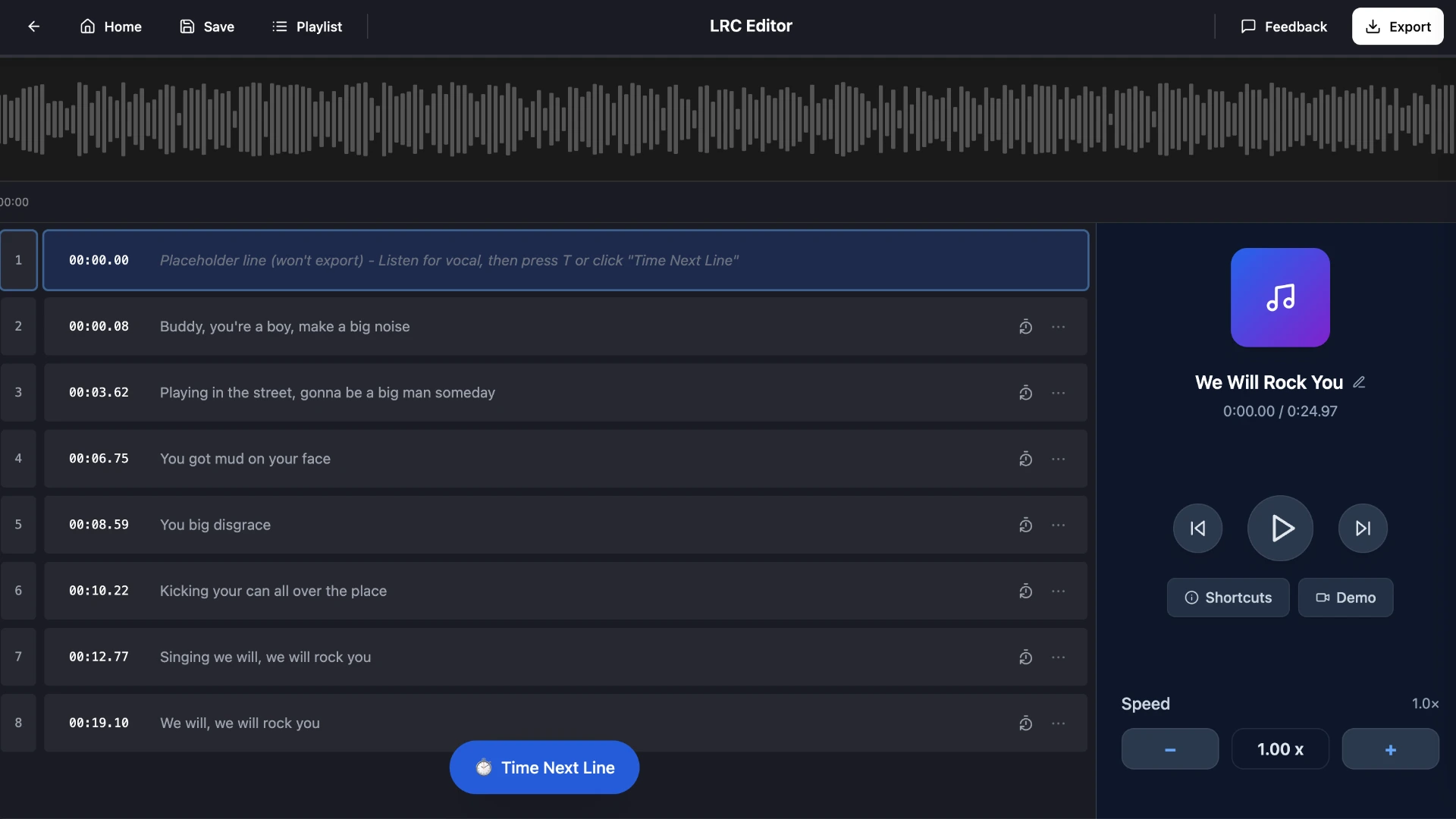
The extracted lyrics appear in a live editor. Play the audio alongside and check the text for any errors. AI transcription is highly accurate, but it can stumble on unusual names, slang, or sections with heavy vocal layering.
Editing is straightforward:
- Double-click a lyrics line to edit the text
- Double-click a timestamp to adjust the timing
- Use the floating toolbar to split or delete lines
Step 4: Export as text or LRC
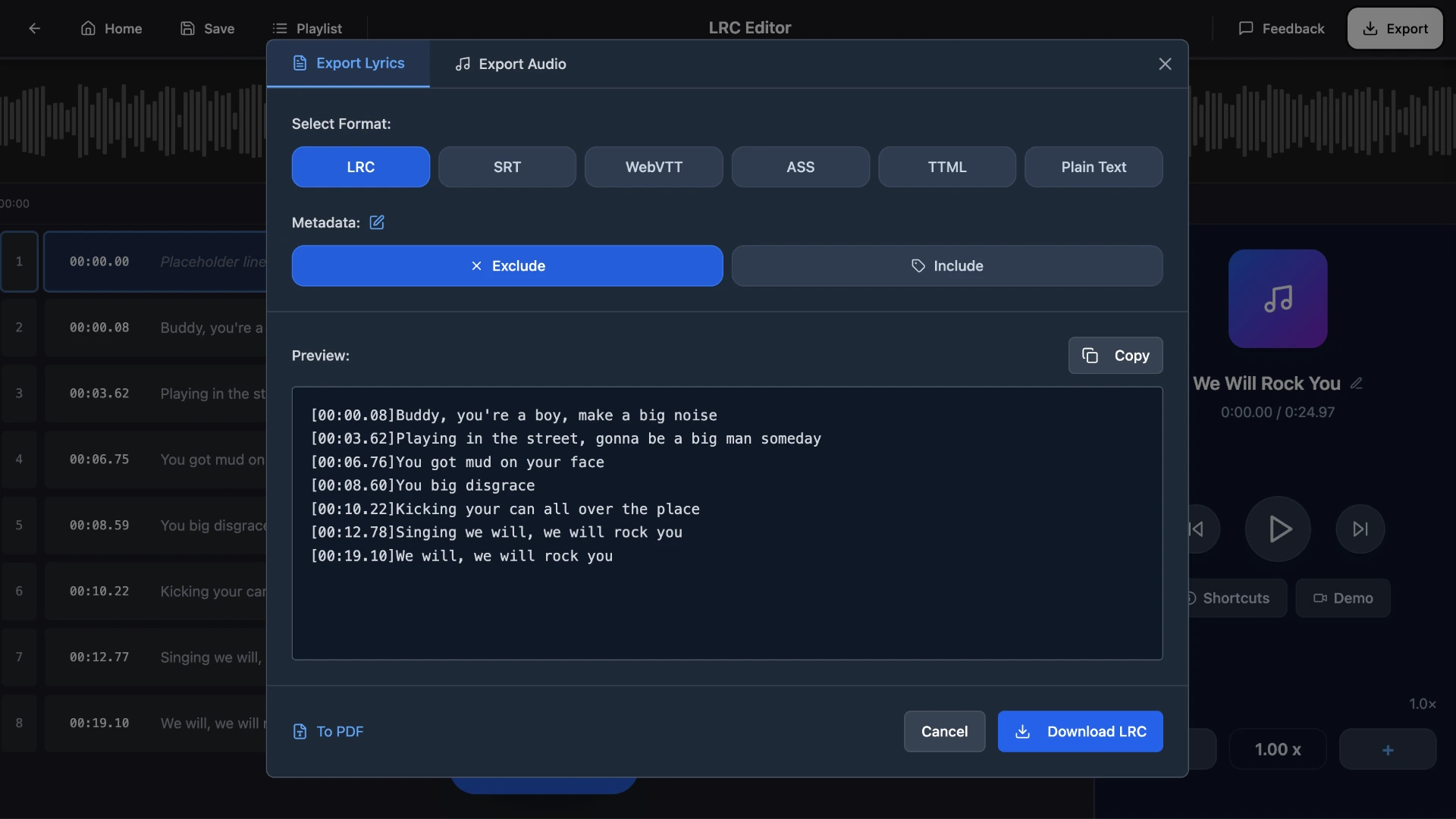
Once the lyrics look right, click the export button in the top-right corner. You can download the result as:
- Plain text (TXT): just the words, no timestamps
- LRC: synced lyrics with timestamps, compatible with music players
- SRT, WebVTT, ASS, TTML: subtitle formats for video or streaming use
What to do with the extracted lyrics text
Once you have the text, there are several practical uses:
Synced lyrics in a music player. Export as LRC and drop the file alongside your MP3. Media players like AIMP, foobar2000, MusicBee, and Poweramp will display the lyrics in sync as the song plays.
Subtitles for a lyrics video. Export as SRT or WebVTT and import into a video editor. This works in CapCut, Premiere Pro, DaVinci Resolve, or any editor that accepts subtitle files.
Embed lyrics in the MP3 file itself. After extracting, you can use the Embed Lyrics tool to write the lyrics directly into the MP3's ID3 tags. Apps that read embedded lyrics (like Musicolet or PowerAmp on Android) will then show them automatically without needing a separate file.
Karaoke file. If you need word-level timing rather than line-level, export the plain text from the Lyrics Extractor, then run it through the Enhanced LRC Generator to get timestamps on every word.
Archive or study. Sometimes you just want the text of a song in a document. Export as TXT, and you have a clean, searchable copy.
Tips for better transcription results
Use high-quality audio. MP3 files at 128kbps or higher give the AI a clearer signal to work with. Low-bitrate or heavily compressed files can introduce artifacts that reduce accuracy.
Enable vocal extraction for instrumental-heavy tracks. The "Extract vocals" toggle runs source separation before transcription. It's slower, but it makes a real difference for tracks where the instruments compete with the voice.
Check the beginning and end. Intro sections with faint vocals or fade-outs at the end are the most common places where the AI misses words. Give those a quick scan before exporting.
Use the editor for corrections, not re-uploads. If only a few words are wrong, fix them in the editor rather than re-running the extraction. The editor lets you change text and timestamps without touching the rest of the transcript.
Frequently asked questions
Can I convert any MP3 file to text?
Yes. The Lyrics Extractor works with MP3 and other common audio formats including WAV, FLAC, M4A, and OGG. As long as the file contains audible vocals, the AI can transcribe it.
Does MP3 to text work for songs in other languages?
Yes. The AI supports many languages including Spanish, French, German, Japanese, Korean, Portuguese, and more. Accuracy is generally high for widely-spoken languages; less common languages may require more manual corrections.
How accurate is the conversion?
For songs with clear vocals, accuracy is typically 95% or higher. Tracks with heavy background instrumentation, group vocals, or unusual pronunciation may need minor editing after transcription.
What formats can I export after converting?
You can export as plain text (TXT), LRC, SRT, WebVTT, ASS, or TTML. LRC is the best choice if you want synced lyrics for a music player. Plain text is the simplest if you just need the words.
Do I need the lyrics before I start?
No. The Lyrics Extractor generates the lyrics entirely from the audio by listening to the vocals and transcribing what it hears. If you already have the lyrics and just need timestamps synced to them, use the AI LRC Generator instead, which is faster for that specific task.
Conclusion
Converting an MP3 to text is quick with AI transcription. Upload your file to QuickLRC Lyrics Extractor, let the AI extract the vocals and generate the lyrics, then export as plain text, LRC, or whichever format fits your use case. The whole process takes under a minute for a typical song, and the editor makes it easy to clean up any mistakes before you export.
Found this helpful? Share it with others!
Newsletter