What is an LRC File and How to Create It
While making an LRC file is time-consuming without proper tools, there are ways to streamline the process. This guide will help you understand the format better while showing you how to create files with ease.
 Westin Tanley
Jan 24, 2026 · 10 min
Westin Tanley
Jan 24, 2026 · 10 min
What does LRC mean, and how does it work?
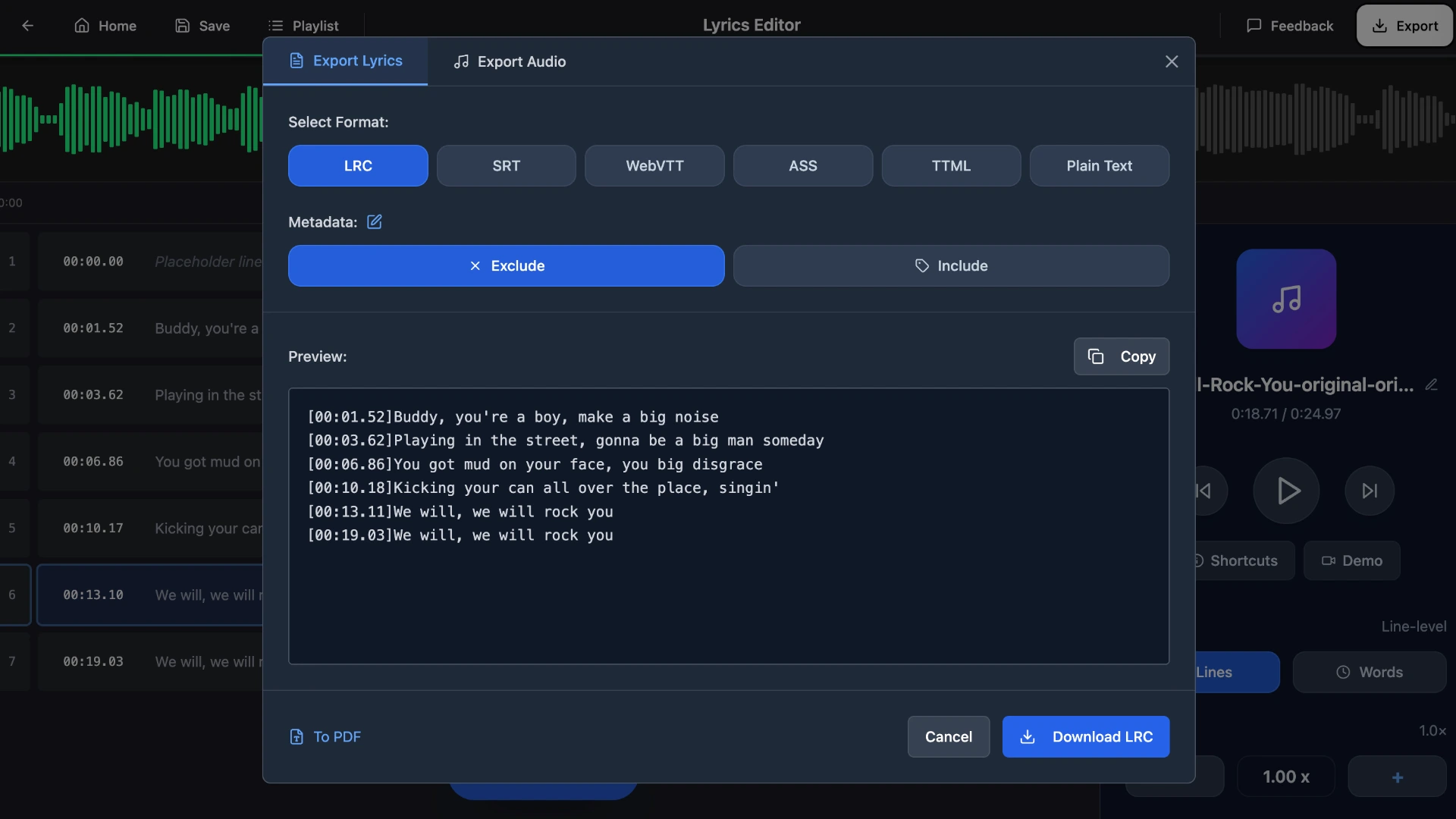
LRC stands for "lyrics" and is a text-based file format (ending in .lrc) that stores song lyrics with timestamps. Each timestamp tells the music player exactly when to display that line, creating the scrolling lyrics effect you see in music players.
A typical LRC file looks like this:
[00:12.30] Hello from the other side
[00:17.20] I must have called a thousand times
The format is straightforward: a timestamp in brackets [mm:ss.xx] followed by the lyrics for that moment. You can open and edit LRC files with any text editor like Notepad or TextEdit, or use an online tool like QuickLRC LRC Viewer to preview them with proper formatting.
For synchronized lyrics to appear automatically in a music player, the LRC file must have the exact same name as the audio file and be in the same folder:
Audio file: Bohemian_Rhapsody.mp3
LRC file: Bohemian_Rhapsody.lrc
If the names differ even slightly (extra spaces, different capitalization, or added words like "Lyrics"), the player won't link them together.
How to create an LRC file
The traditional way to create an LRC file is by using Notepad or TextEdit. You listen to the vocals, manually mark each timestamp, and add the lyrics before saving it as a .lrc file. While this method is the most precise, it is also the most time-consuming. In this guide, we will introduce two methods using online LRC editors to create your files more efficiently.
Method 1: Create an LRC file with Online LRC Maker
Step 1: Go to QuickLRC Manual LRC Maker
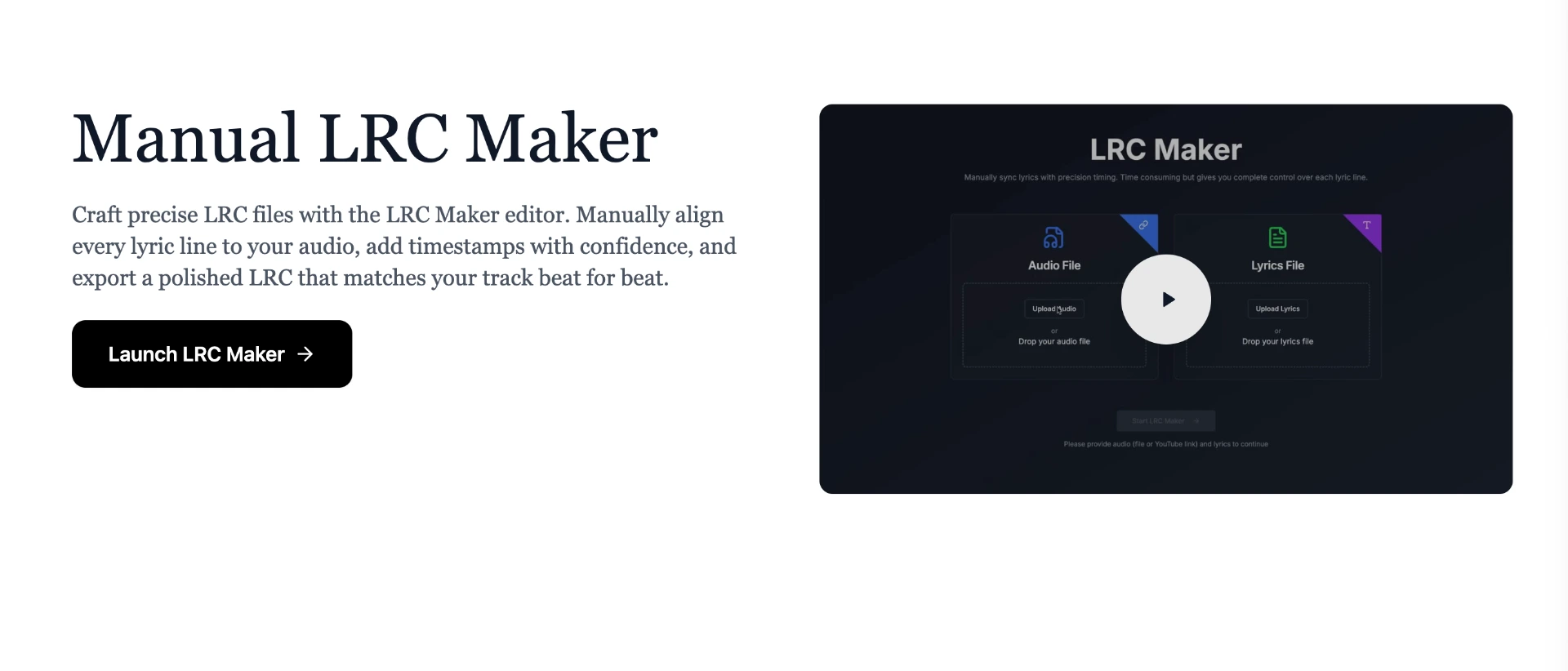
Step 2: Upload your song file and paste the lyrics text
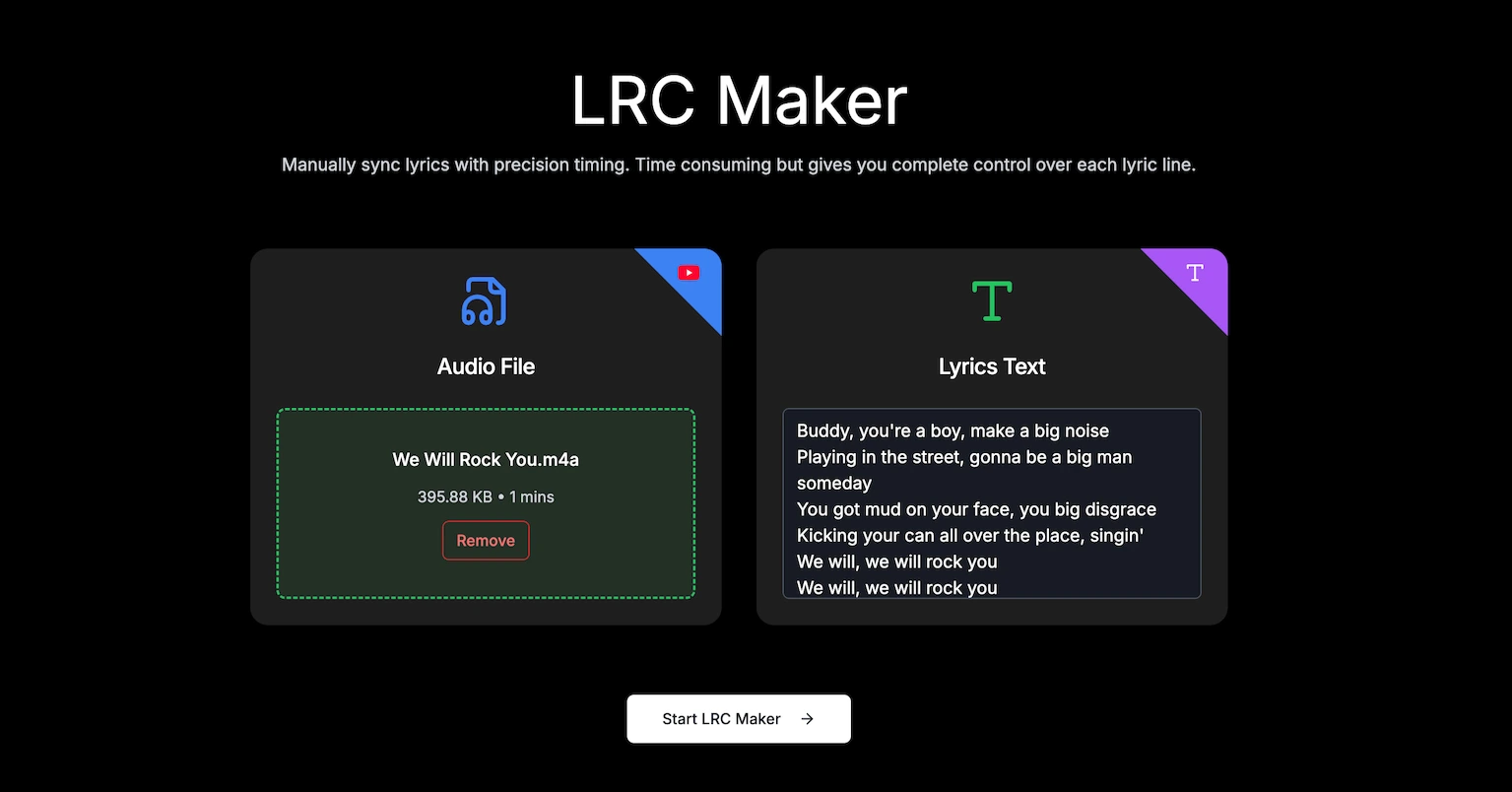
Step 3: Click "Start LRC Maker" to open the LRC Editor
Step 4: Click "►" to play the song, listen to the vocals and click "Time Next Line" to mark the timestamp
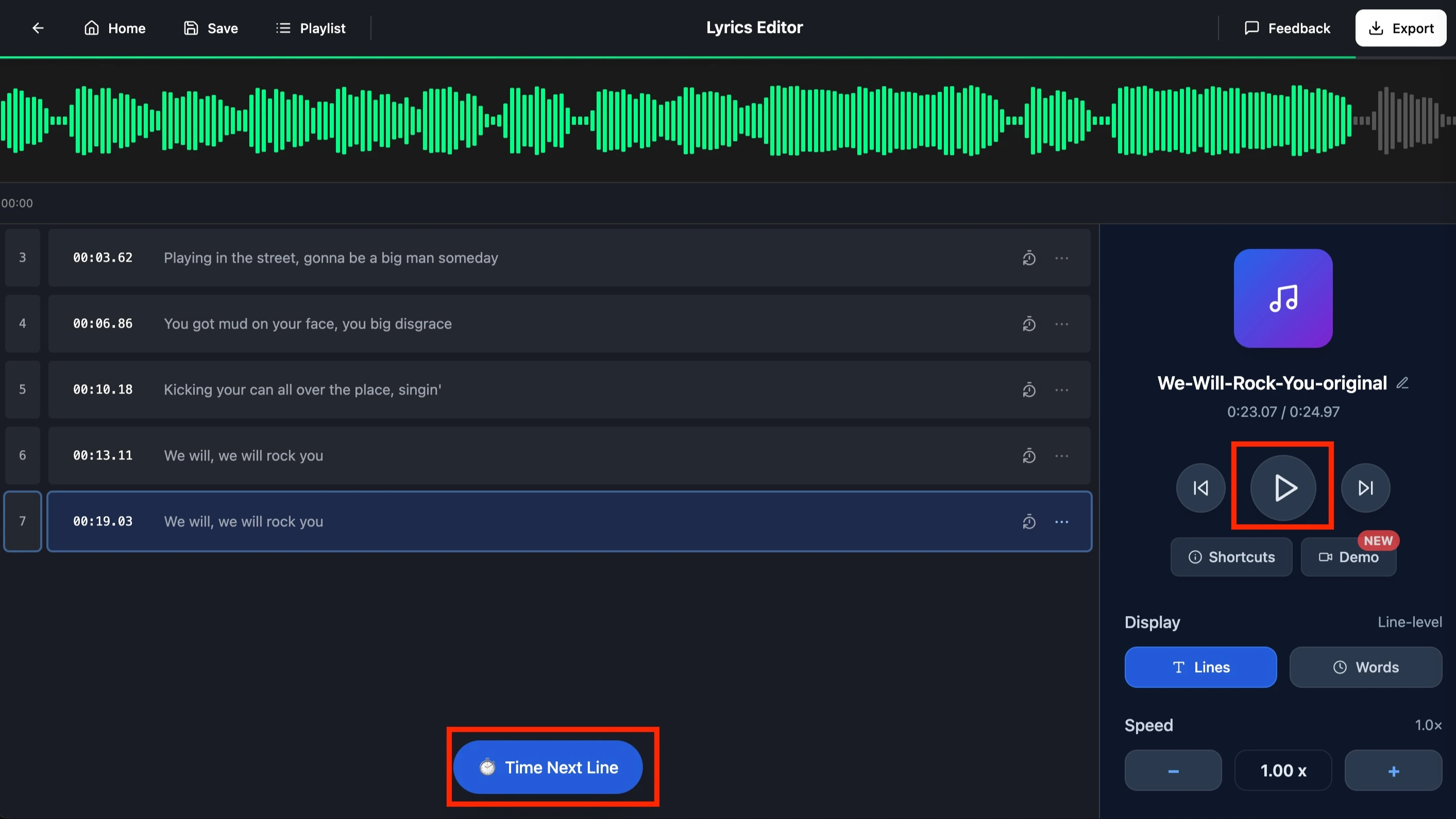
Step 5: Continue listening until you mark all the timestamps
Step 6: Export the .lrc file from the Editor and use it
Advantages
- Still the most accurate method because you mark the timestamps yourself.
Disadvantages
- For a 3-minute song, you need at least 3 minutes to make it. On average, it could take 1.5 times longer (4-5 minutes).
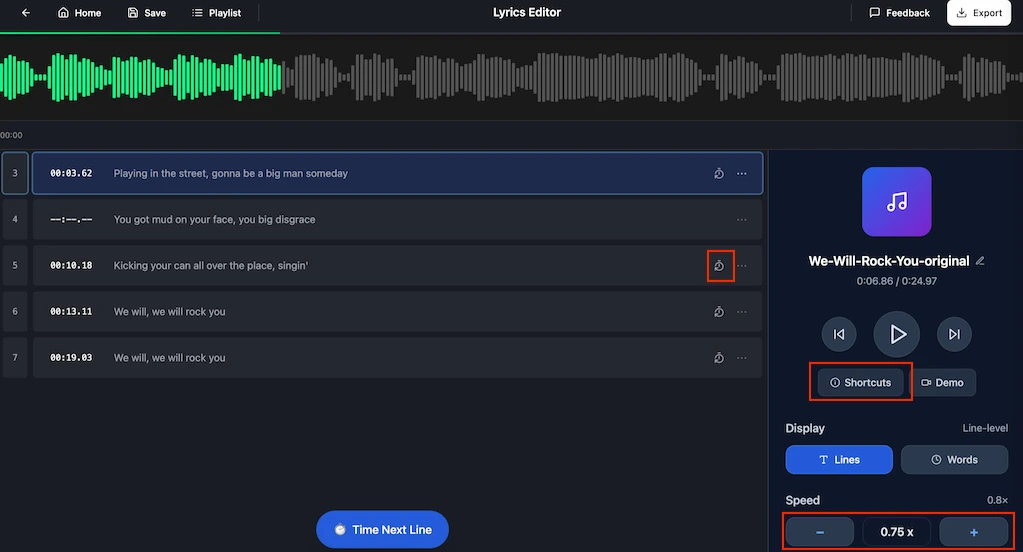
During the process, you might get distracted or misclick the button. Here are a few tips to perfect your lyrics timestamps:
- Delete the timestamp to re-mark it
- Use shortcuts to streamline your marking process
- Slow down the playback speed for fast songs
Method 2: Create an LRC file with Online AI LRC Generator
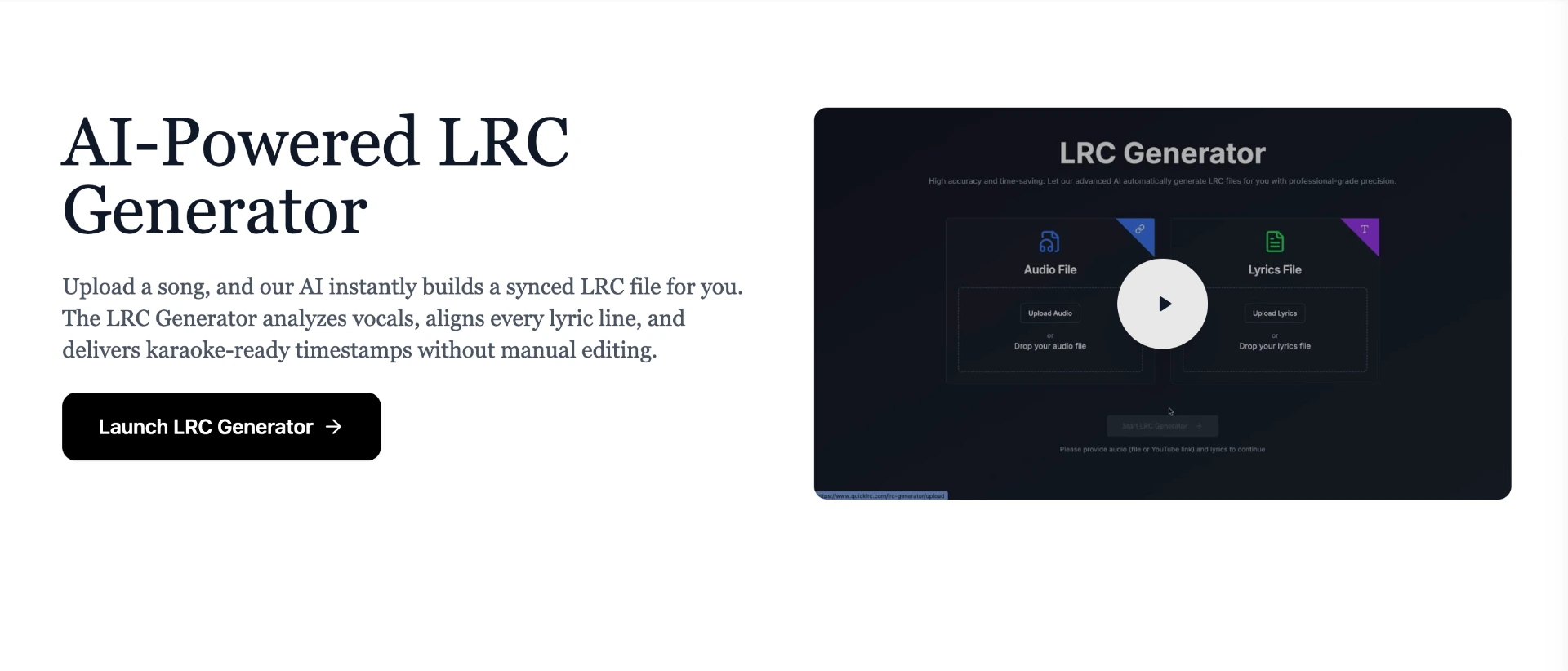
Step 1: Go to QuickLRC AI LRC Generator
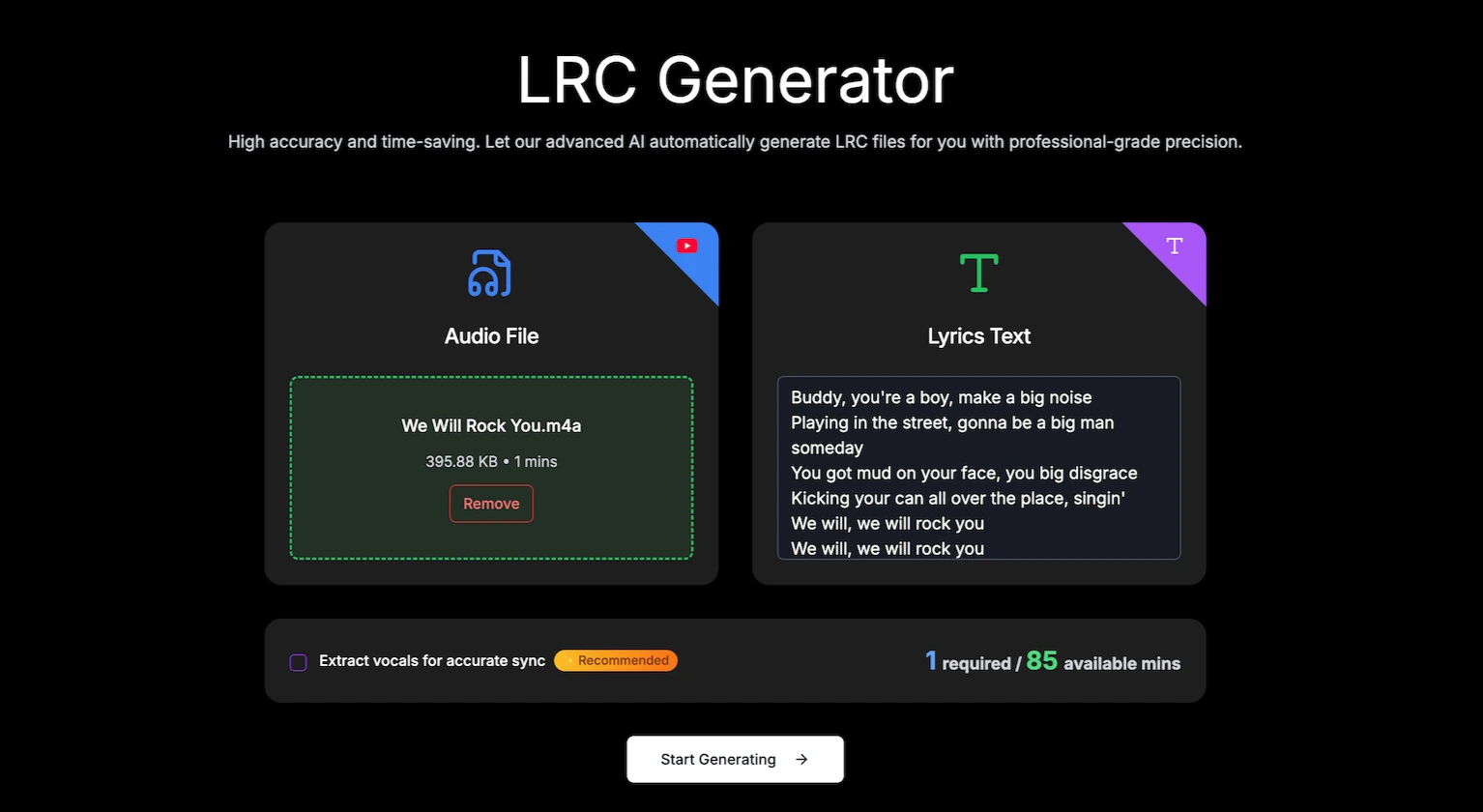
Step 2: Upload your song file, paste the lyrics text, and click "Start Generating". Wait around 30 seconds for the AI to process
Step 3: Preview the lyrics with the timestamps
Most of the time you won't need any changes, but the live preview in the LRC Editor ensures every timestamp is correct. If there's accidentally a wrong timestamp, use the tip above to delete and re-mark it manually.
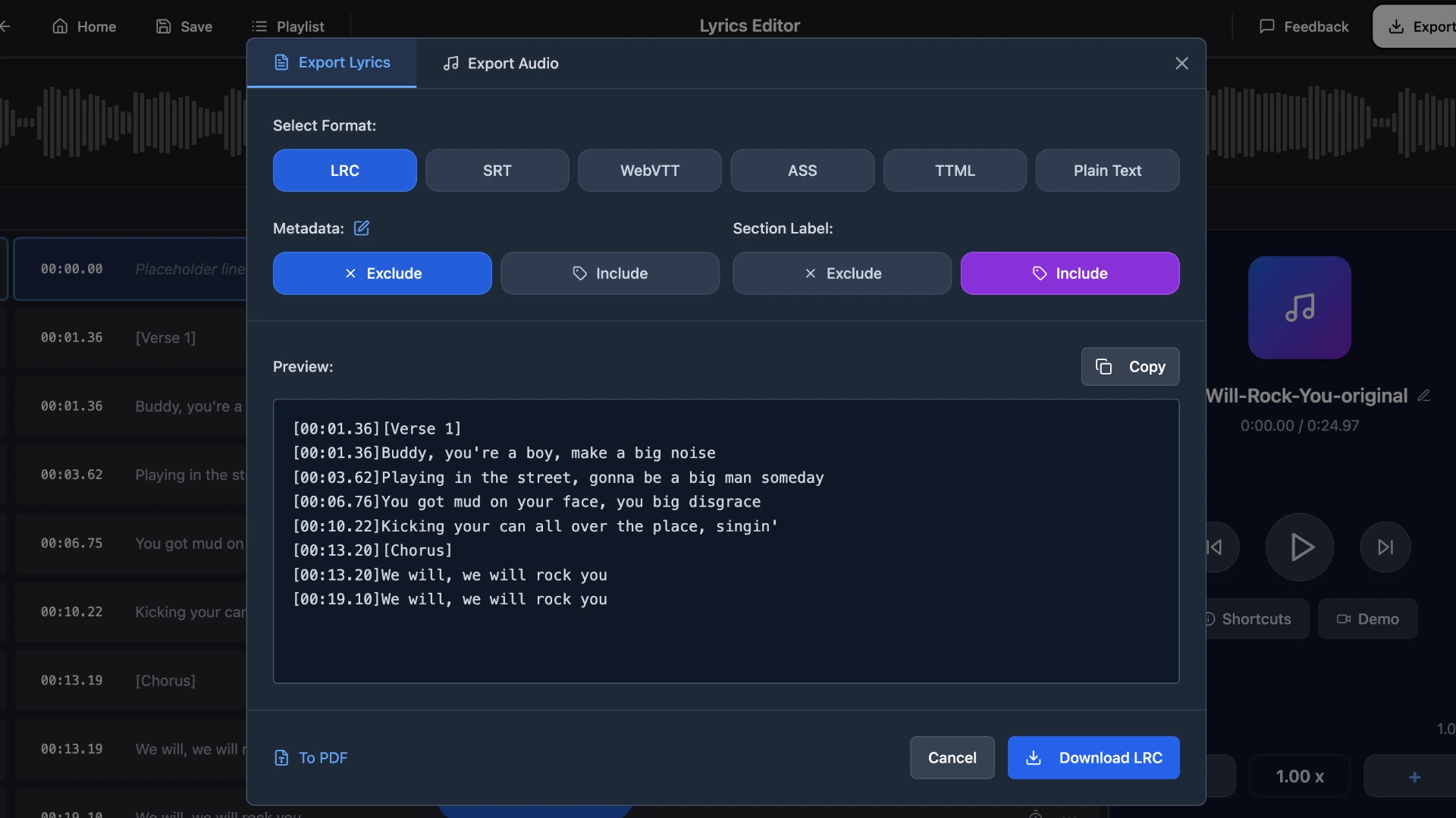
Step 4: Export the .lrc file from the Editor and use it
Advantages
- Very accurate with QuickLRC's powerful AI model, with accuracy of 95%+.
- For a 3-minute song, it takes around 30 seconds to generate the timestamps.
Disadvantages
- Since it's AI-generated, mistakes can occasionally happen.
Frequently asked questions
Can I edit an existing LRC file?
Yes, LRC files are plain text. Open them with any text editor or use QuickLRC LRC Editor for a visual editing experience.
Can I use LRC files with any music player?
Most modern players like AIMP, foobar2000, MusicBee, and Poweramp support LRC files. Windows Media Player and Apple Music do not natively support LRC.
Why are my lyrics not syncing correctly with the song?
The LRC file name must exactly match the audio file name and be in the same folder. Also check that timestamps are correct.
Is there a limit to how long a song can be for LRC file creation?
No technical limit exists. For long audio files, using the AI LRC Generator is recommended over manual methods.
Conclusion
No doubt, LRC files are here to stay. They are widely used and supported by many music players and online streaming platforms for scrollable lyrics and a better listening experience. With the help of QuickLRC tools, your work with LRC files will go fast and smoothly.
Found this helpful? Share it with others!
Newsletter