How to Add Lyrics to MP3 Files
Most music players can display lyrics in real time, but only if the lyrics are actually there. Without them, you're left searching online mid-song or guessing at words. Adding lyrics to your MP3s means they work offline — for karaoke, language learning, or just following along with your favorite songs.

 Westin Tanley
Feb 9, 2026 · 4 min
Westin Tanley
Feb 9, 2026 · 4 min
Why add lyrics to MP3 files
Streaming services show lyrics automatically, but your local MP3 collection doesn't — unless you add them yourself. With lyrics embedded or paired with your files, you get real-time lyrics display that works offline. It's useful for karaoke, learning a new language, or simply following along with songs you love.
There are two ways to do it: embed lyrics directly into the MP3's ID3 metadata, or place a separate LRC file alongside the audio. Each approach has trade-offs, which the next section covers.
Embedded lyrics vs LRC file
Embedded lyrics are stored inside the MP3 file itself, in its ID3 metadata tags (the same place that holds the song title, artist, and album art). The lyrics travel with the file no matter where you copy it. The downside is that editing them requires a tag editor, and not all players support synced embedded lyrics — some only support plain unsynced text.
An LRC file is a separate text file that you place in the same folder as your MP3, with the same filename. It contains timestamped lyrics that music players read and display in sync with the audio. LRC files are easy to create, edit, and share — but if you move or rename the MP3 without the LRC file, the lyrics are lost.
Embedded Lyrics
- Lyrics travel with the file — never lost
- Synced lyrics support varies by player
LRC File
- Widely supported across music players
- Separate file — must keep it alongside the MP3
How to add lyrics to MP3 with embedded lyrics
QuickLRC Embed Lyrics lets you embed lyrics directly into your MP3 file's metadata. Upload your MP3, paste your lyrics in plain text or synced LRC format, and download the file with lyrics embedded. The tool auto-detects the format from your input — no manual selection needed. It also supports multiple languages, so a single MP3 can carry lyrics in English, Japanese, Korean, or any other language.
If your lyrics are plain text without timestamps, the tool embeds them as unsynchronized lyrics (USLT tag). Most players will show the full lyrics as a static block of text.
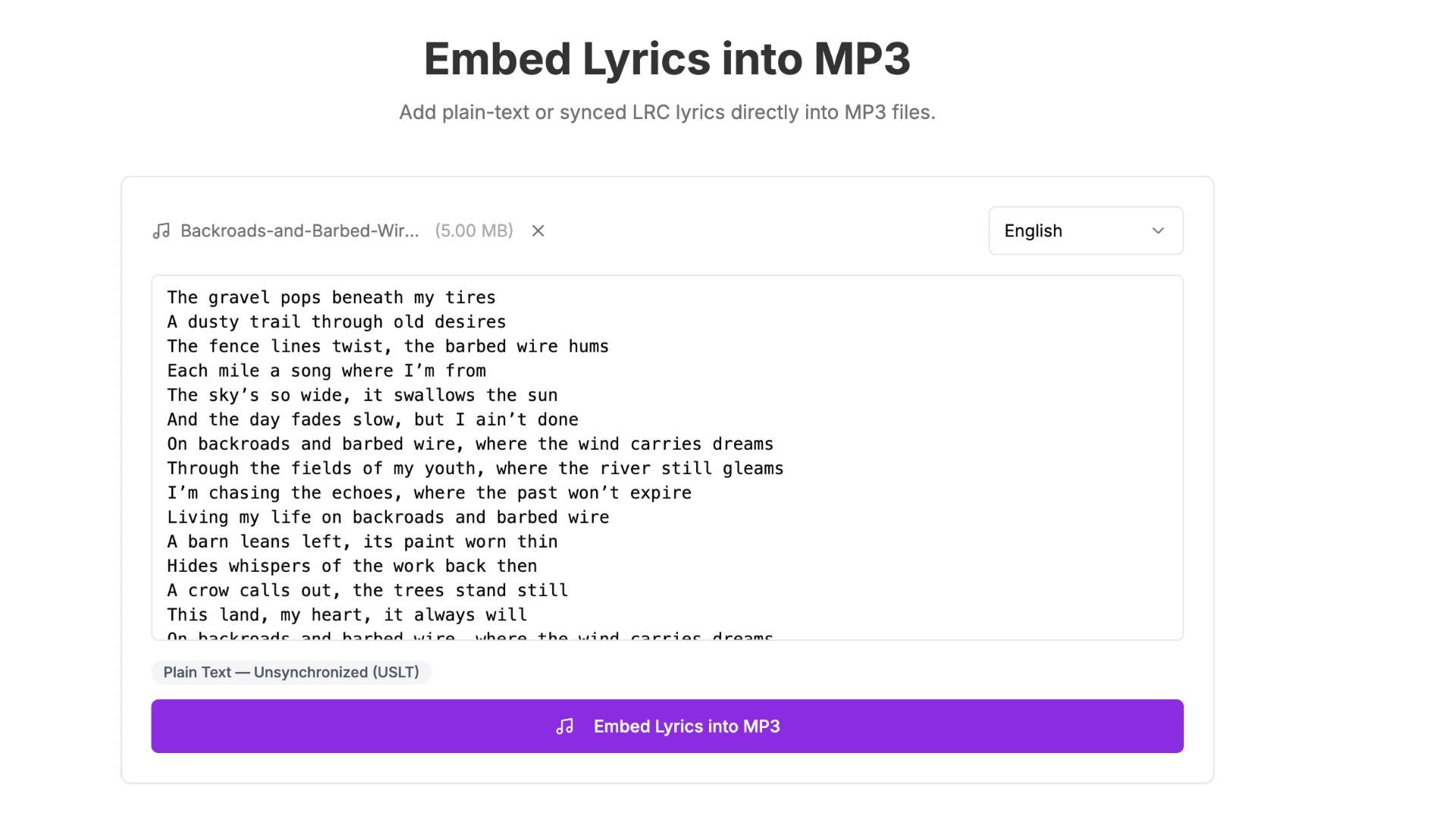
If your lyrics are in LRC format with timestamps, the tool automatically detects them and embeds both synchronized (SYLT) and unsynchronized (USLT) tags. Players that support synced lyrics will scroll line by line during playback.
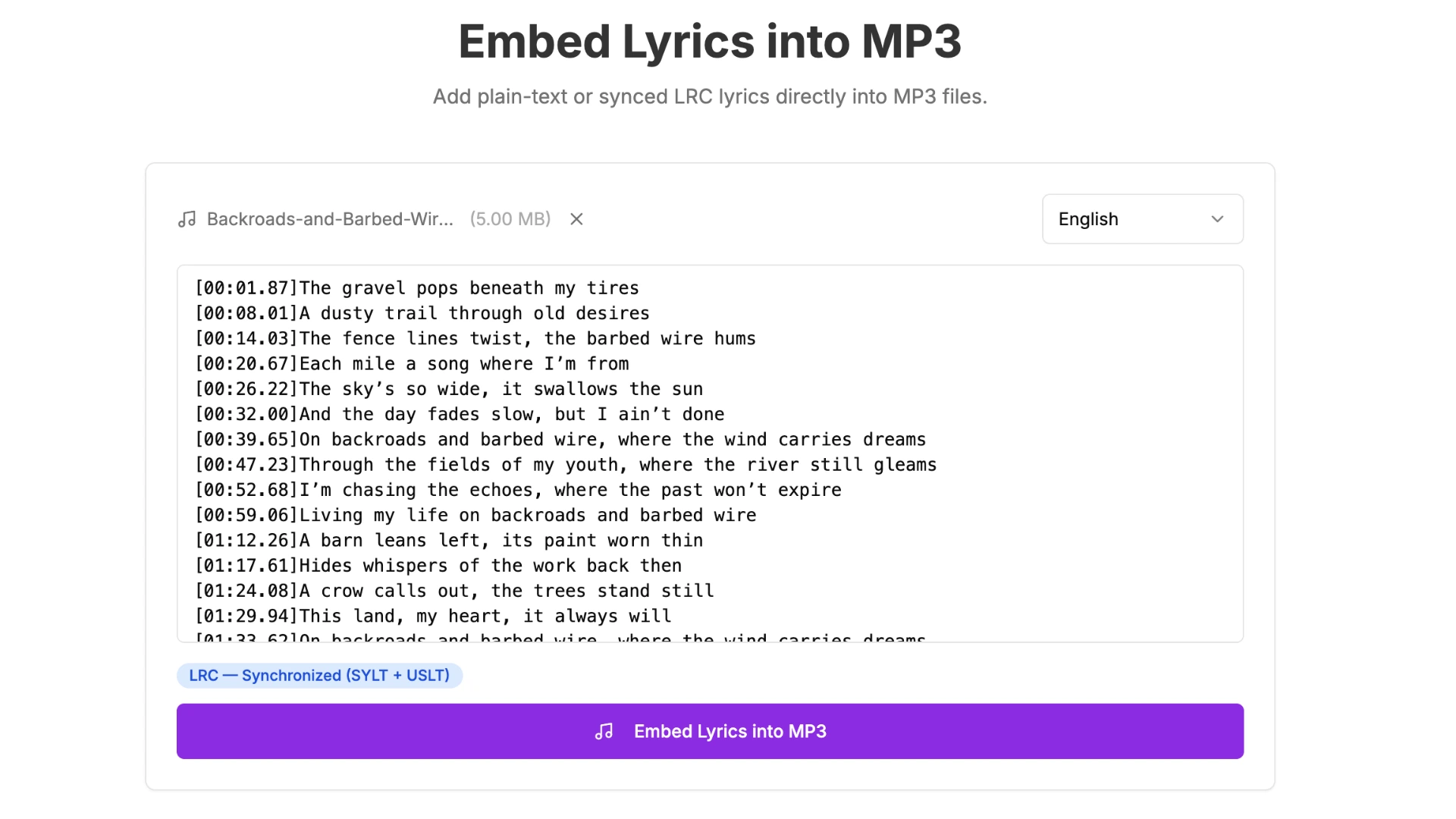
Once embedded, players like AIMP, MusicBee, foobar2000, and Poweramp should display the lyrics during playback — though support for synced embedded lyrics may vary depending on the player and version.
How to add lyrics to MP3 with LRC file
To use an LRC file with your MP3, you first need to create one. You can generate synced lyrics from audio with the AI LRC Generator. For a full walkthrough, see our guide on what is an LRC file and how to create it.
Once you have your LRC file, place it in the same folder as your MP3 and make sure both files share the same name:
Music/
  Artist - Song Title.mp3
  Artist - Song Title.lrc
Most music players — including AIMP, foobar2000, MusicBee, and Poweramp — will automatically detect the LRC file and display synced lyrics during playback.
Frequently asked questions
Can I add synced lyrics to other formats like FLAC or M4A?
Yes. FLAC uses Vorbis comments and M4A uses iTunes-style tags. The process is similar — use QuickLRC Embed Lyrics into FLAC for FLAC files, or a tag editor for M4A.
Will embedding lyrics increase my MP3 file size?
Only by a few kilobytes. Lyrics are plain text, so the size increase is negligible even with multiple languages embedded.
How do I validate that lyrics were embedded correctly?
After embedding lyrics into your MP3, you can verify them using QuickLRC Extract Embedded Lyrics.
Conclusion
Adding lyrics to your MP3 files gives you real-time lyrics display without relying on streaming services or an internet connection. Use QuickLRC Embed Lyrics to embed lyrics directly into the file, or create an LRC file to place alongside your audio — both methods work with most music players.
Found this helpful? Share it with others!
Newsletter