How to Make an LRC File on Android
Making an LRC file on Android is easier than you might think — you don't need a desktop computer or a dedicated app. With the right web tool, you can create synced lyrics files directly from your phone's browser in just a few minutes.
 Westin Tanley
Mar 1, 2026 · 5 min
Westin Tanley
Mar 1, 2026 · 5 min
What is an LRC file?
An LRC file is a plain-text file that pairs song lyrics with timestamps so music players can scroll the lyrics in sync with the audio. Each line looks like this:
[00:14.32] We're no strangers to love
[00:19.10] You know the rules and so do I
The timestamps tell the player exactly when to show each line. LRC files are widely supported by music players on Android, Windows, macOS, and various streaming apps.
If you want a deeper look at the format before diving in, see our guide on what an LRC file is and how to create one.
Why make an LRC file on Android?
Most people listening to music on Android are doing it from their phone — so it makes sense to create LRC files there too, without having to switch to a computer. But beyond convenience, there are real benefits to making LRC files on mobile.
Your phone is where your music library lives. If you have local audio files stored on your Android device, you can upload them directly from your phone's storage without transferring anything to a desktop first. No cables, no syncing, no extra steps.
You can save the LRC file right where the song is. Once you download the finished LRC file on Android, you can move it directly into the same folder as your audio file using a file manager app like Files by Google. Since most local music players look for an LRC file in the same directory with the same filename as the song (e.g., song.mp3 → song.lrc), placing it there means your lyrics show up automatically the next time you play the track — no extra configuration needed.
How to Make an LRC File on Android with AI
The fastest way to make an LRC file on Android is to use an online LRC maker directly in your browser — no app download required. The AI handles all the timestamps automatically, giving you a fully synced lyrics file in seconds.
Here's how:
- Open quicklrc.com/lrc-generator in your Android browser.
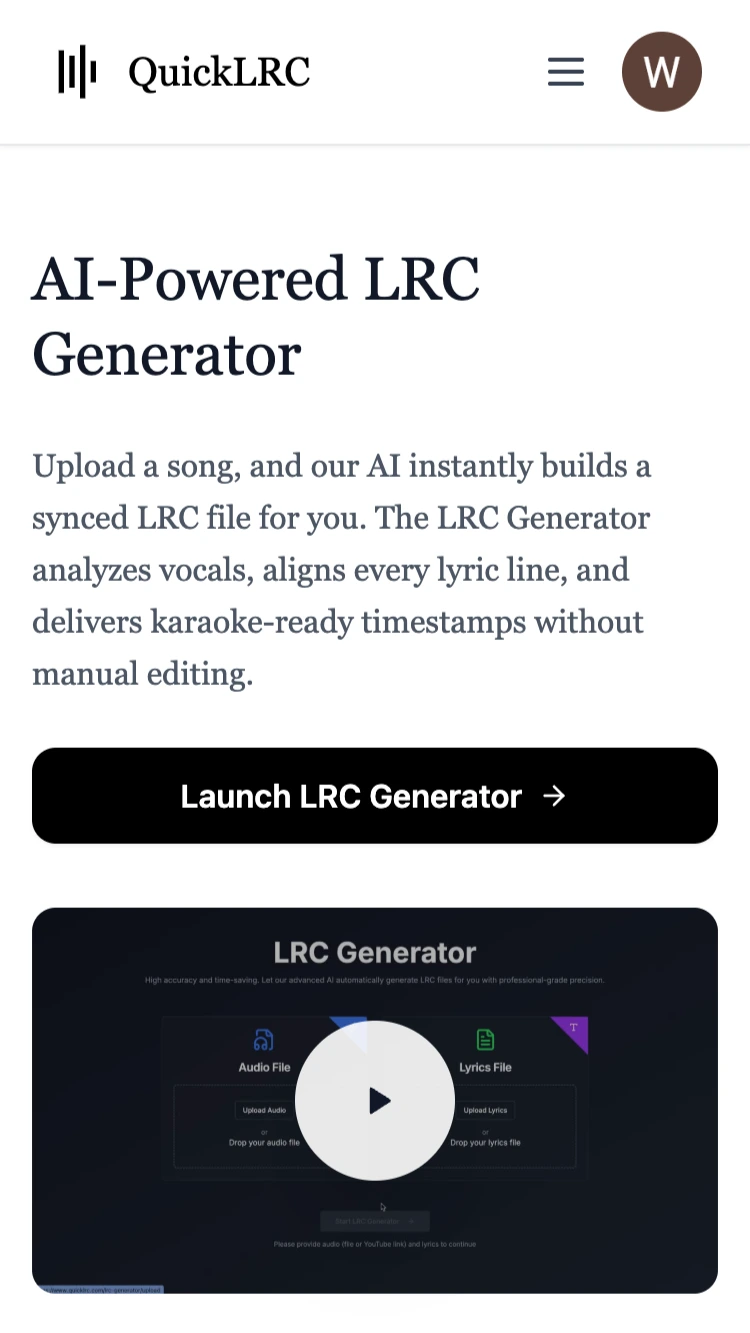
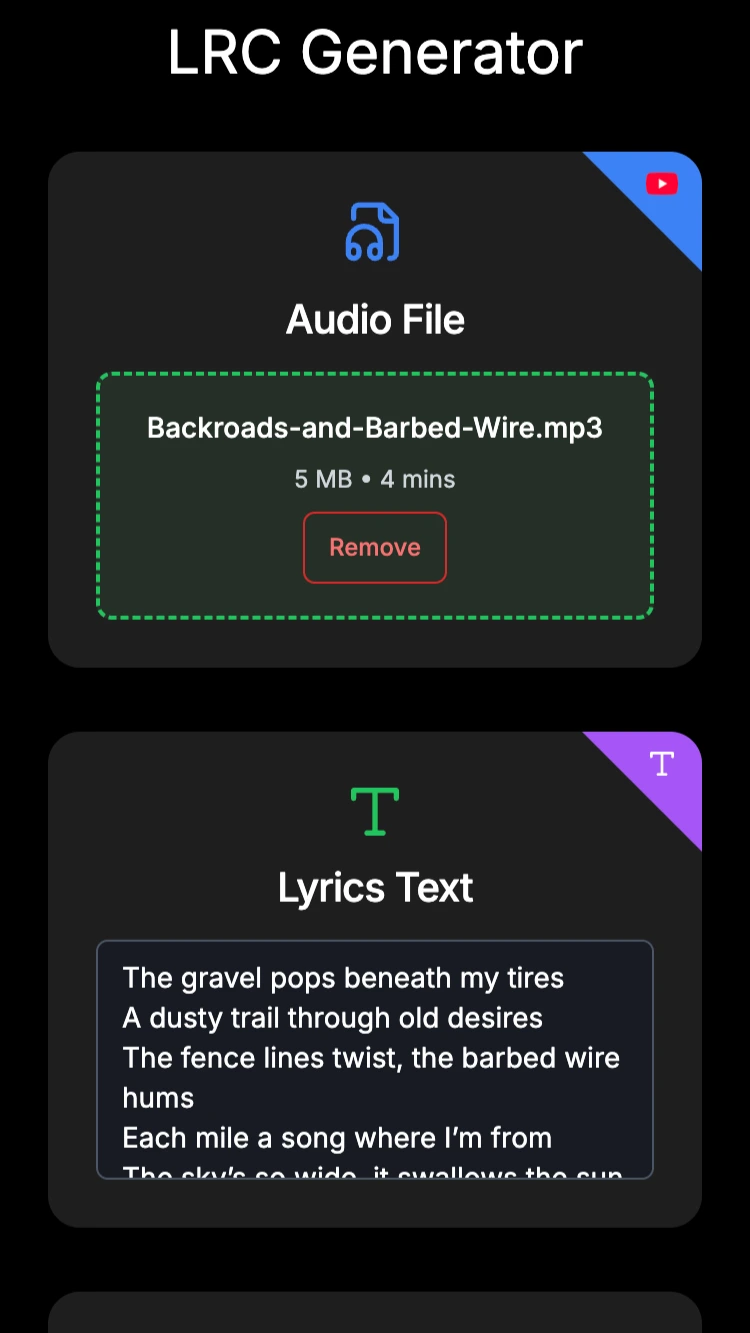
- Tap Upload Audio, select your song, then paste your lyrics into the text field.
- Tap Generate and wait a few seconds. You can preview the synced lyrics in the live player to make sure everything looks right.
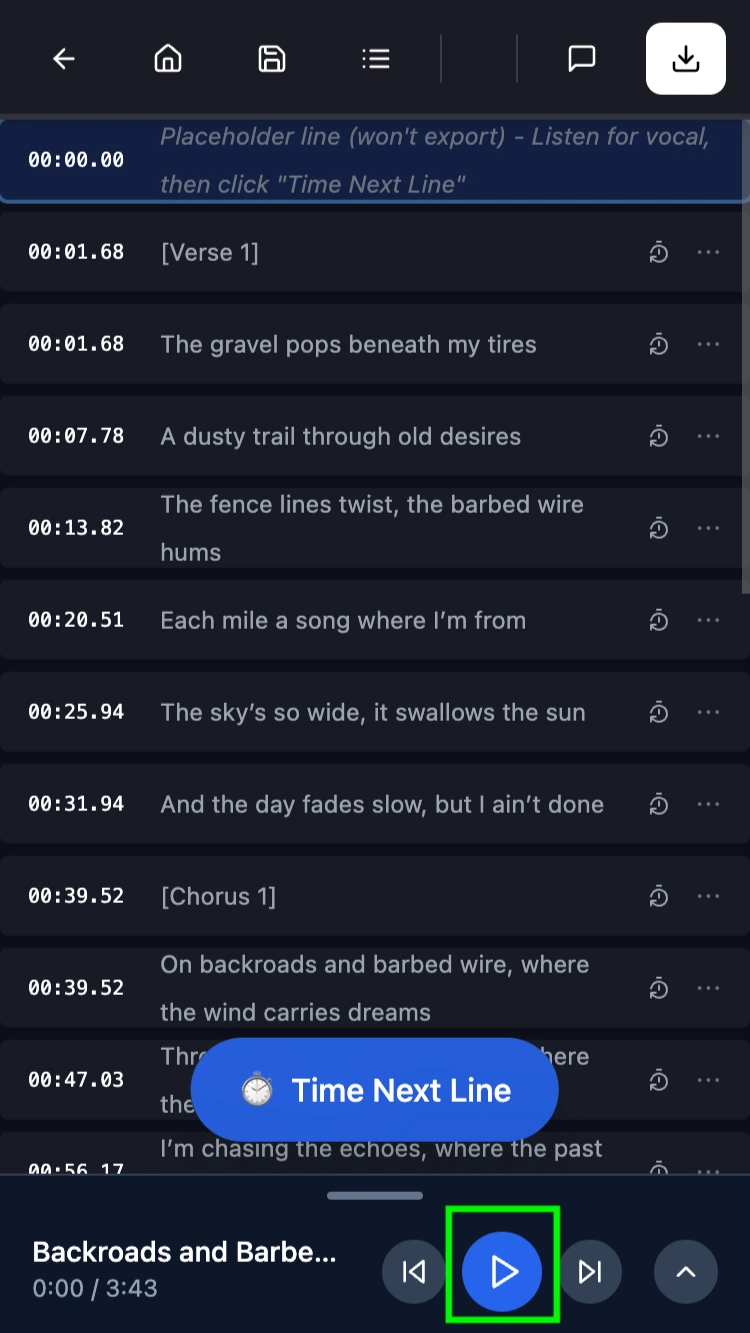
- Tap Download LRC. The file is automatically named to match your song, so just move it into the same folder and your music player will pick it up instantly.
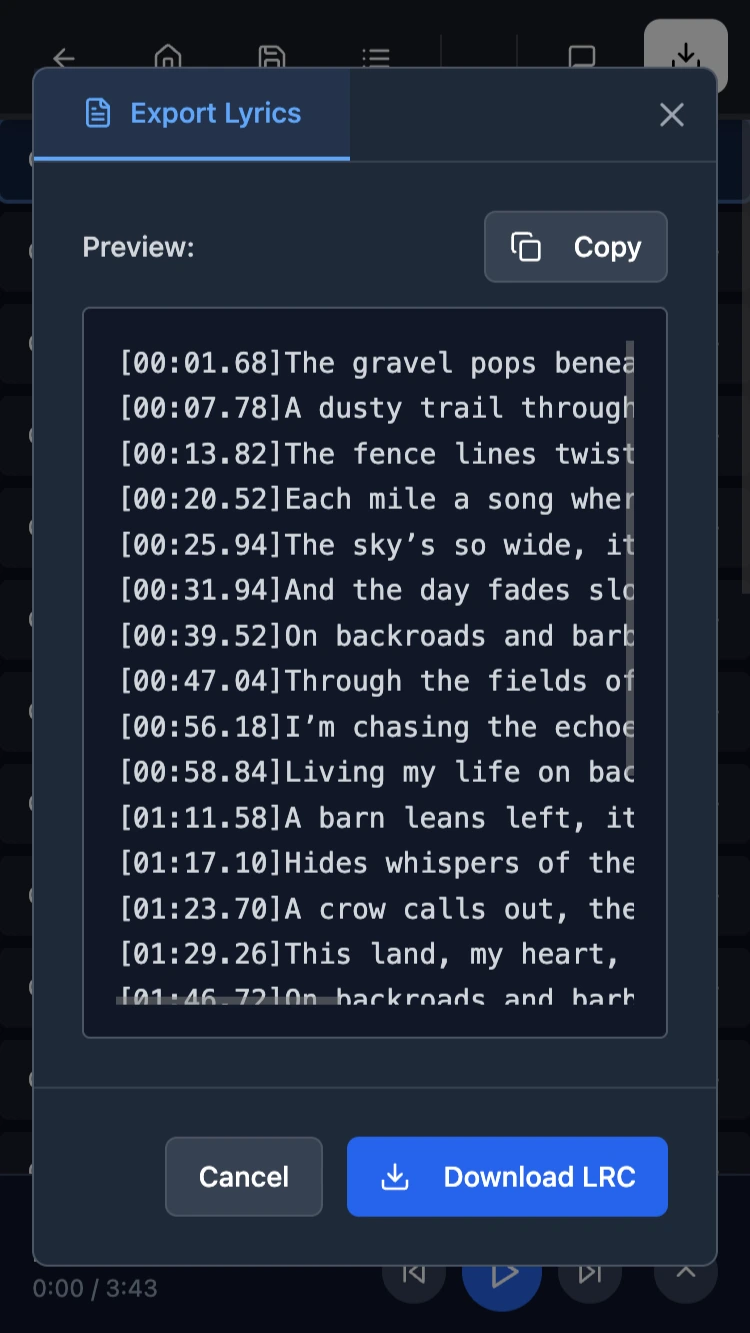
This method works best when you want automatic, hands-off syncing. The AI analyzes the audio and places timestamps on each lyric line without any manual input from you. It's the quickest path from an audio file to a finished LRC file on mobile.
Frequently asked questions
Can I make an LRC file on Android without installing an app?
Yes. QuickLRC is entirely browser-based. Open it in Chrome or any Android browser and create, sync, and download LRC files without installing anything on your device.
What do I do with an LRC file after creating it on Android?
Place the LRC file in the same folder as your audio file and give it the same name (e.g., song.mp3 and song.lrc). Most Android media players — including Poweramp, Musicolet, and AIMP — will detect the LRC file automatically and display the synced lyrics while the song plays.
Can I edit an existing LRC file on Android?
Yes. Upload your existing LRC file to the Manual LRC Maker to edit timestamps or lyrics directly in your browser. Alternatively, open the file in any plain-text editor app and make changes by hand, since LRC files are just text.
How accurate is the AI sync on Android?
The AI LRC Generator delivers 95%+ timestamp accuracy on clear audio. Results are best with studio-quality recordings and clean vocal tracks. If a few lines are slightly off, you can fix them directly in the editor — click Time Next Line to re-mark a timestamp, or double-click any timestamp to edit it directly.
Conclusion
Making an LRC file on Android is straightforward with the right tool. The AI LRC Generator runs entirely in your mobile browser — upload your audio, let the AI produce synced lyrics, and download the result in under a minute. No computer, no app installation needed. Whether you want synced lyrics for a local music player or just need a quick LRC file on the go, everything can be done directly from your Android phone.
Found this helpful? Share it with others!
Newsletter