How to Use LRC Files with Jellyfin
Jellyfin is one of the best open-source media servers for self-hosted music libraries, and since version 10.9, it natively supports LRC files for synchronized, scrolling lyrics. This guide walks you through everything you need to get synced lyrics working in Jellyfin, from finding or creating an LRC file to making it appear in the player.
 Westin Tanley
Apr 4, 2026 · 5 min
Westin Tanley
Apr 4, 2026 · 5 min
What is an LRC file?
An LRC file is a plain-text file that stores lyrics with timestamps, so each line appears on screen exactly when it's sung. The format looks like this:
[00:14.23] Somewhere over the rainbow
[00:19.87] Way up high
Each bracketed timestamp marks when Jellyfin (or any compatible player) should display that line. The result is a karaoke-style lyrics experience: lyrics scroll in sync with the music without any manual adjustment.
LRC files are a companion to your audio file, not embedded inside it. That makes them easy to add, edit, or swap out without touching the original music file.
Jellyfin lyrics support explained
Jellyfin added native lyrics support in version 10.9, released in 2024. It can display lyrics from two sources:
- External LRC files: a
.lrcfile sitting next to the audio file in your library - Embedded lyrics: plain or timed lyrics stored inside the audio file's metadata tags
For synced, scrolling lyrics, external LRC files are the most flexible option. You can create them yourself, download them from databases like LRCLib, or generate them with AI. No need to re-tag your audio files.
The Jellyfin web client and most mobile apps (including Jellyfin for Android and iOS) display synced lyrics through a lyrics panel in the music player. The lyrics panel scrolls automatically as the song plays.
How to add LRC files to Jellyfin
Getting LRC files working in Jellyfin is a three-step process: name the file correctly, place it in the right folder, and refresh the library.
Step 1: Match the filename exactly
Jellyfin looks for an LRC file that shares the same name as the audio file, with a .lrc extension instead. For example:
01 - Bohemian Rhapsody.flac→01 - Bohemian Rhapsody.lrc02 - You're My Best Friend.flac→02 - You're My Best Friend.lrc03 - '39.flac→03 - '39.lrc
The names must match exactly, including spaces, capitalization, and any track-number prefixes. A single character difference will prevent Jellyfin from finding the file.
Step 2: Place the LRC file in the same folder
Move the LRC file into the same directory as the audio file. Jellyfin scans for external lyrics in the same folder as the track. It does not search sub-folders.
A typical library folder looks like this after adding LRC files:
Music/
└── Queen/
    └── A Night at the Opera/
        ├── 01 - Bohemian Rhapsody.flac
        ├── 01 - Bohemian Rhapsody.lrc
        ├── 02 - You're My Best Friend.flac
        ├── 02 - You're My Best Friend.lrc
        ├── 03 - '39.flac
        ├── 03 - '39.lrc
Step 3: Refresh the library metadata
Jellyfin won't pick up new files automatically until it rescans. To force an update:
- Open the Jellyfin dashboard
- Navigate to Libraries and select your music library
- Click Scan All Libraries (or right-click the specific album and choose Refresh Metadata)
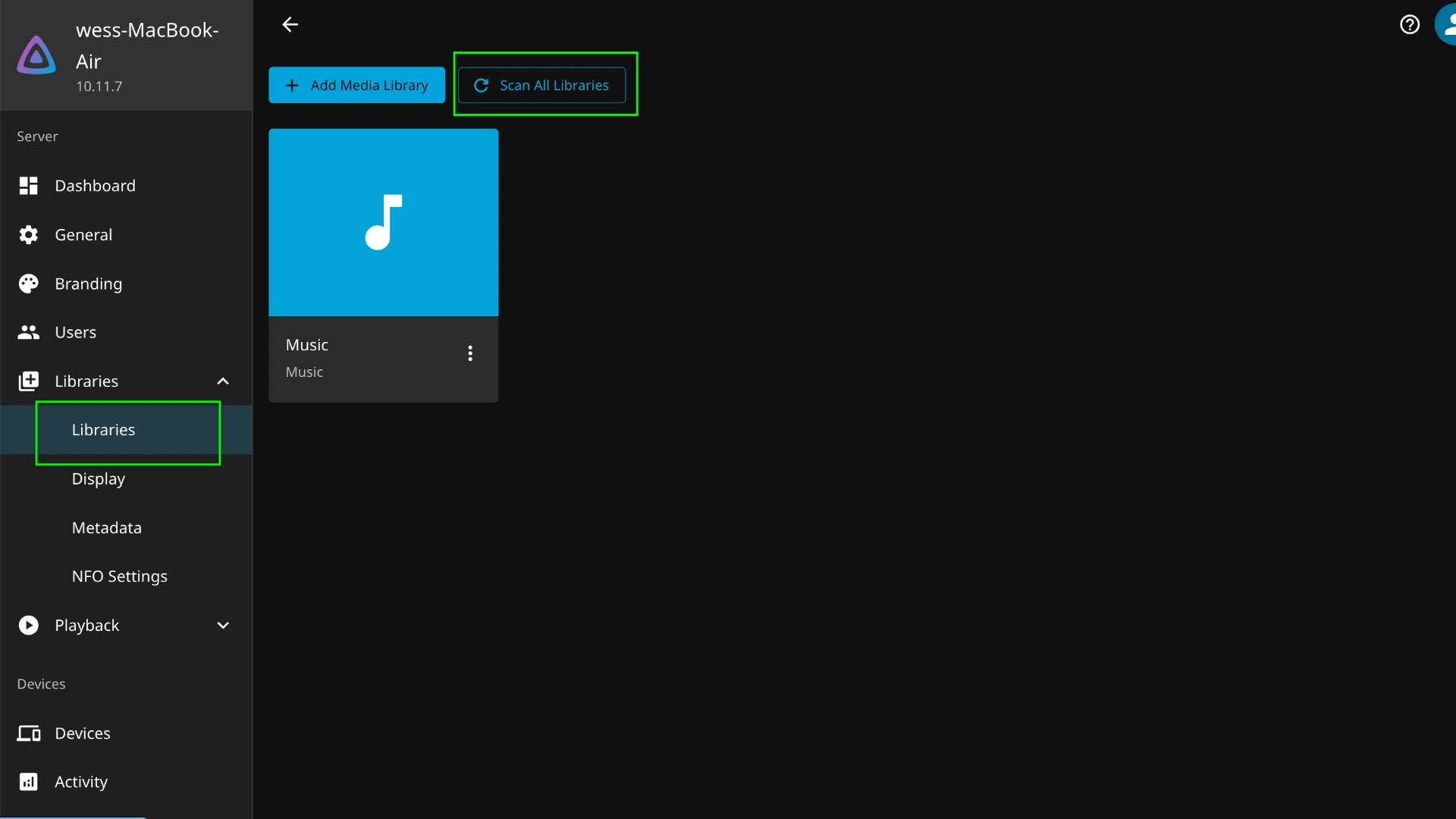
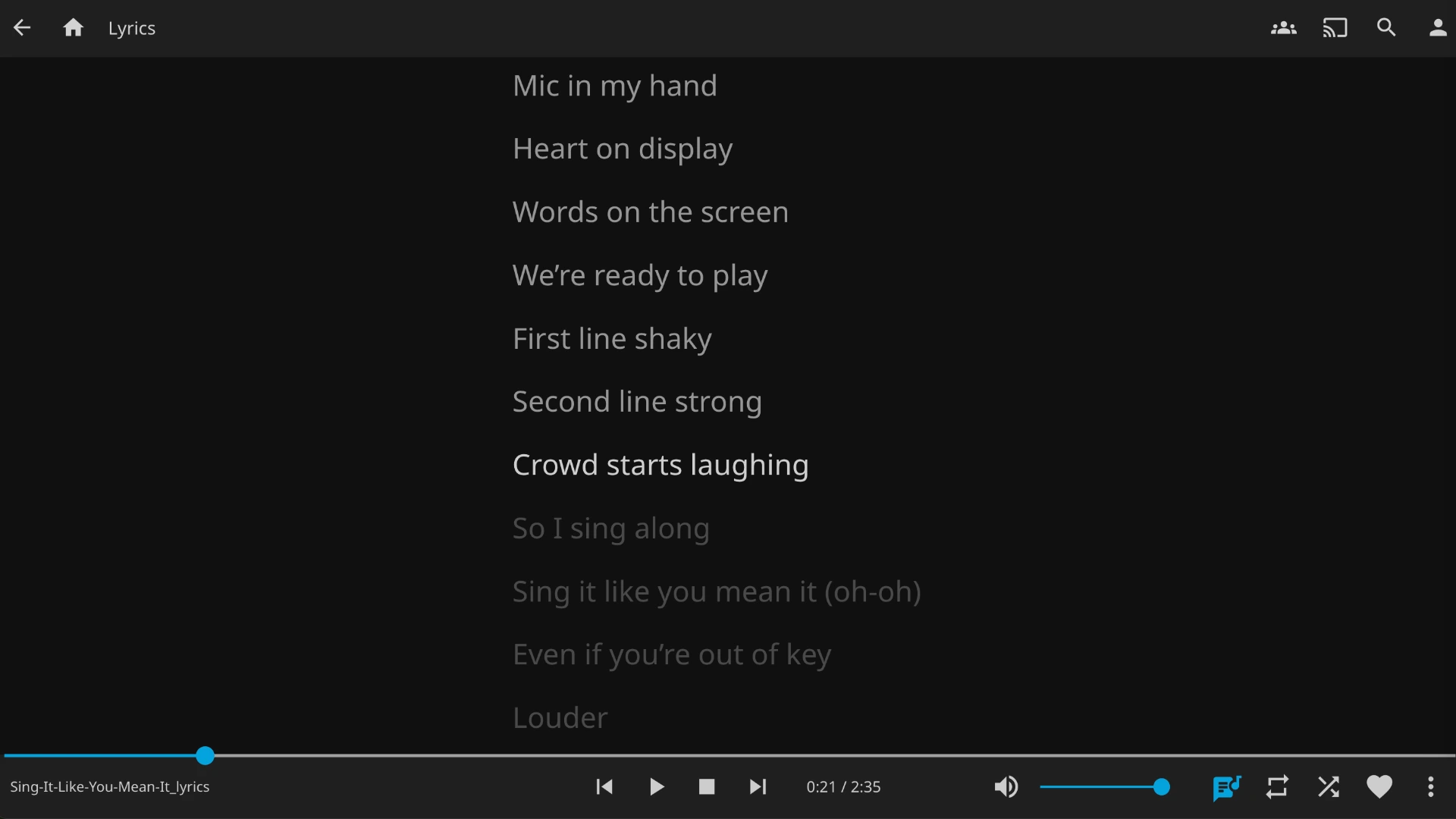
After the scan completes, play a track and tap the lyrics icon (speech bubble) in the player to open the lyrics panel. Your LRC lyrics should appear and scroll in sync.
Alternative: embed synced lyrics into the audio file
Instead of keeping a separate .lrc file, you can embed synced lyrics directly inside the audio file itself. Jellyfin reads embedded synced lyrics the same way it reads external LRC files. The lyrics panel will scroll in sync either way.
The main advantage is portability: the lyrics travel with the audio file no matter where you copy or move it. You don't need to manage a parallel set of .lrc files alongside your music.
- MP3: Synced lyrics are stored in the
SYLTID3 tag. Use QuickLRC's Embed Lyrics into MP3 tool to write your LRC timestamps directly into the file. - FLAC: Synced lyrics are stored as a Vorbis comment. Use the Embed Lyrics into FLAC tool to embed them without re-encoding the audio.
The trade-off is that embedded lyrics are harder to edit after the fact: you need to re-embed the file to make changes. External LRC files are easier to swap out quickly. For most self-hosted libraries, external LRC files are the simpler starting point, and embedding is worth it once you're happy with the timing.
How to get or create an LRC file
If you don't already have an LRC file, you have three options:
- Download from a database: LRCLib is a free community database that covers most popular songs. Search by title and artist and download the
.lrcfile directly. - Generate with AI: QuickLRC's AI LRC Generator automatically transcribes and timestamps lyrics from your audio file in under a minute.
- Create manually: The LRC Maker lets you tap along to the song in your browser and set timestamps line by line.
Frequently asked questions
Why don't my LRC lyrics appear in Jellyfin?
The most common cause is a filename mismatch. Compare the LRC and audio filenames character by character, including spaces, capitalization, and any track-number prefixes. Also make sure you've refreshed the library metadata after adding the file.
Why are my Jellyfin lyrics showing as plain text instead of syncing?
Jellyfin may be reading embedded plain-text lyrics from the audio file's tags instead of the external LRC file. Try refreshing metadata for that specific track. If the issue persists, check whether the audio file has an unsynced LYRICS tag; you may need to clear it.
Why are my LRC lyrics out of sync in Jellyfin?
The LRC file was likely generated from a different version of the song (e.g., a radio edit vs. the album version). Edit the LRC file to adjust the timestamps, or regenerate it using the correct audio file.
Why doesn't the lyrics icon appear in the Jellyfin player?
Confirm you're running Jellyfin 10.9 or later. Older versions don't support lyrics display. Update your Jellyfin server and all clients.
Does Jellyfin support word-level (enhanced) LRC?
No. Jellyfin does not support word-level timestamps. If you load an enhanced LRC file, it will fall back to line-level display.
Conclusion
There are two ways to get synced lyrics working in Jellyfin: external LRC files alongside your audio, or synced lyrics embedded directly inside the audio file. External LRC files are the easiest to set up: match the filename, drop it in the same folder, and refresh the library. Embedding is the better long-term option if you want lyrics to travel with the file. Either way, the AI LRC Generator can create the timestamps automatically from any audio file.
Found this helpful? Share it with others!
Newsletter