Generate LRC Files Programmatically with the QuickLRC API
Building a lyrics app, a karaoke tool, or a music player that shows synced lyrics? The typical approach — scraping lyrics sites, calling a database API, or hardcoding text — breaks the moment you need timestamps. The QuickLRC API skips all of that. You send an audio URL, and it sends back a finished LRC file with timestamps already attached.
 Westin Tanley
May 4 · 5 min
Westin Tanley
May 4 · 5 min
Why Generate LRC Files Through an API
LRC files store timed lyrics — each line paired with a timestamp that tells a player when to display it. Writing them by hand is slow. Existing lyrics databases return plain text with no timing, and the timestamps they do occasionally include are line-level only, which rules out word-by-word karaoke highlighting.
The QuickLRC API generates LRC files directly from audio. It does not look anything up in a catalog. It listens to your file, transcribes what is sung, and stamps every word with its exact position in the recording. That means it works on:
- Unreleased tracks and demos that have never been indexed
- Covers and remixes where the lyrics differ from the original
- Non-English and regional music that catalog APIs miss
- Any audio where you need the timing to match your specific recording, not a generic entry
The output is a real LRC file, ready to drop into any player or editor that supports the format.
Here is what a basic request looks like:
curl -X POST https://quicklrc.com/api/v1/transcribe \
  -H "Authorization: Bearer qlrc_..." \
  -H "Content-Type: application/json" \
  -d '{ "fileUrl": "https://example.com/song.mp3", "format": "lrc" }'
[00:03.10] You were the shadow to my light
[00:06.44] Did you feel us
[00:08.15] Another start
What the API Returns
The endpoint accepts six output formats controlled by the format field. The default is lrc.
LRC is the standard format for synced lyrics. One timestamp per line. Compatible with Jellyfin, Poweramp, AIMP, MusicBee, and most dedicated lyrics players. See what an LRC file is and how to create one for a full breakdown.
[00:14.32] Never gonna give you up
[00:17.80] Never gonna let you down
Enhanced LRC — enabled by setting isWordLevel: true — embeds an inline timestamp before each word. Players that support it highlight one word at a time as the song progresses, which is the karaoke effect. See the complete guide to enhanced LRC files for details on the format.
[00:14.32] <00:14.32>Never <00:14.91>gonna <00:15.30>give <00:15.72>you <00:16.10>up
[00:17.80] <00:17.80>Never <00:18.39>gonna <00:18.78>let <00:19.20>you <00:19.58>down
The other formats behave differently with isWordLevel: true. Send the same request with a different format value and you get back a different file type. The response Content-Type header changes to match.
WebVTT embeds word timestamps inline within each cue:
00:00:14.320 --> 00:00:17.800
<00:00:14.320>Never <00:00:14.910>gonna <00:00:15.300>give <00:00:15.720>you <00:00:16.100>up
SRT splits each word into its own numbered subtitle block:
1
00:00:14,320 --> 00:00:14,910
Never

2
00:00:14,910 --> 00:00:15,300
gonna

3
00:00:15,300 --> 00:00:15,720
give
ASS outputs one Dialogue line per word:
Dialogue: 0,0:00:14.32,0:00:14.91,Default,,0,0,0,,Never
Dialogue: 0,0:00:14.91,0:00:15.30,Default,,0,0,0,,gonna
Dialogue: 0,0:00:15.30,0:00:15.72,Default,,0,0,0,,give
TTML outputs one <p> element per word:
<p begin="00:00:14.320s" end="00:00:14.910s" style="defaultStyle">Never</p>
<p begin="00:00:14.910s" end="00:00:15.300s" style="defaultStyle">gonna</p>
<p begin="00:00:15.300s" end="00:00:15.720s" style="defaultStyle">give</p>
TXT ignores isWordLevel and returns plain text only.
smartSections is a QuickLRC-specific option. Set it to true and the API uses AI to detect song structure and insert section labels — [Verse], [Chorus], [Bridge], [Outro] — at the right positions. This works best when you pass lyrics text for force-align mode.
[00:12.00] [Verse]
[00:14.32] Never gonna give you up
[00:17.80] Never gonna let you down
[00:42.00] [Chorus]
[00:43.10] Inside we both know what's been going on
How to Use the API
Step 1: Create an API Key
Go to your QuickLRC dashboard and create a new API key. Keys start with qlrc_. Keep it private — it goes in the Authorization header of every request.
Free accounts include 5 minutes of audio per month. Subscribed accounts receive a larger monthly allowance. Credit cost is rounded up to the nearest minute per request.
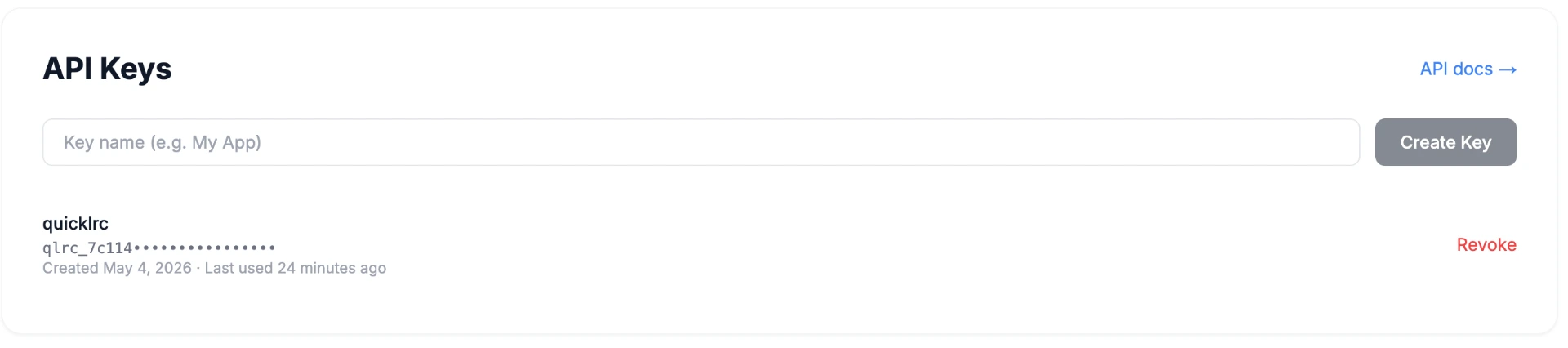
Step 2: Test on the API Docs Page
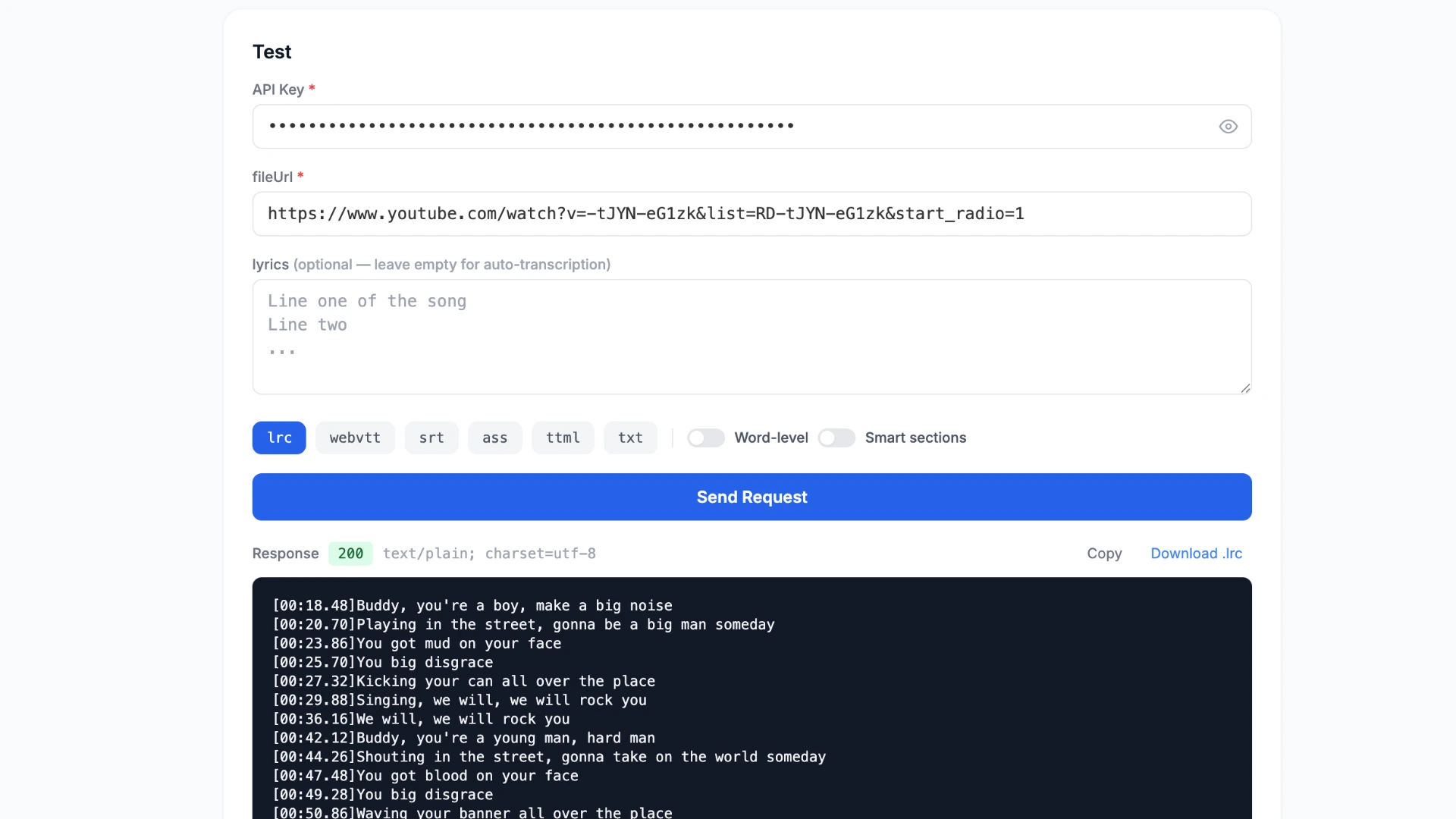
Before writing any code, use the live test panel at quicklrc.com/docs/api to try a real request in the browser:
- Paste your API key into the API Key field
- Enter a publicly accessible audio URL — or a YouTube URL — into fileUrl
- Optionally paste lyrics into lyrics to use force-align mode
- Pick an output format (
lrc,webvtt,srt,ass,ttml, ortxt) - Toggle Word-level on for per-word timestamps
- Click Send Request
The response appears directly in the panel. You can copy it or download it as a file. This is the fastest way to confirm your key works and see exactly what the output looks like before integrating it into your project.
Step 3: Make an API Call
The endpoint is a single POST to https://quicklrc.com/api/v1/transcribe. Send Content-Type: application/json and your Authorization: Bearer qlrc_... header with every request.
fileUrl is the only required field. It accepts any publicly accessible audio or video URL, including YouTube links. The API measures the duration automatically — you do not need to pass it.
Auto-transcribe — no lyrics needed:
curl -X POST https://quicklrc.com/api/v1/transcribe \
  -H "Authorization: Bearer qlrc_..." \
  -H "Content-Type: application/json" \
  -d '{ "fileUrl": "https://example.com/song.mp3" }'
Force-align with your own lyrics, word-level output:
curl -X POST https://quicklrc.com/api/v1/transcribe \
  -H "Authorization: Bearer qlrc_..." \
  -H "Content-Type: application/json" \
  -d '{
    "fileUrl": "https://example.com/song.mp3",
    "lyrics": "Line one of the song\nLine two of the song",
    "isWordLevel": true,
    "format": "lrc"
  }'
YouTube URL with SRT output:
curl -X POST https://quicklrc.com/api/v1/transcribe \
  -H "Authorization: Bearer qlrc_..." \
  -H "Content-Type: application/json" \
  -d '{
    "fileUrl": "https://www.youtube.com/watch?v=dQw4w9WgXcQ",
    "format": "srt"
  }'
Python:
import requests

response = requests.post(
    "https://quicklrc.com/api/v1/transcribe",
    headers={
        "Authorization": "Bearer qlrc_...",
        "Content-Type": "application/json",
    },
    json={
        "fileUrl": "https://example.com/song.mp3",
        "isWordLevel": True,
        "format": "lrc",
    },
)

with open("output.lrc", "w") as f:
    f.write(response.text)
Node.js:
const response = await fetch("https://quicklrc.com/api/v1/transcribe", {
  method: "POST",
  headers: {
    "Authorization": "Bearer qlrc_...",
    "Content-Type": "application/json",
  },
  body: JSON.stringify({
    fileUrl: "https://example.com/song.mp3",
    format: "lrc",
  }),
});

const lrc = await response.text();
A 200 response returns the subtitle file as plain text. Save it with the matching extension (.lrc, .vtt, .srt, etc.) and it is ready to use in any compatible player or editor. For a comparison of when to use each format, see SRT vs LRC: which format for music.
Frequently Asked Questions
Can I pass a YouTube URL instead of an audio file?
Yes. The fileUrl field accepts YouTube URLs directly. The API downloads the audio automatically — no extra steps needed.
What is the difference between auto-transcribe and force-align?
Auto-transcribe generates lyrics from scratch using speech recognition with no text input needed. Force-align takes lyrics you already have and matches each word to its exact timestamp in the audio. Force-align is more accurate when you already have the correct text.
Which output format should I use?
Use LRC for karaoke players, Jellyfin, Poweramp, and lyrics editors. Use WebVTT for web video players. Use SRT for video editors like Premiere or DaVinci Resolve. Use ASS for subtitle renderers that support styled text. For a full comparison, see the music subtitle formats guide.
What does smartSections do?
When smartSections is set to true, the API uses AI to detect song structure and insert section labels like [Verse], [Chorus], and [Bridge] at the right positions in the output. It defaults to false.
Conclusion
Generating LRC files programmatically used to mean scraping, manual timing, or hoping the song was in a lyrics database. The QuickLRC API removes all of that. Send an audio URL — including YouTube links — and get back a ready-to-use LRC file with accurate timestamps in one request.
Get your API key from the QuickLRC dashboard, try a live request on the API docs page, and integrate the output into your player, editor, or pipeline in minutes.
Found this helpful? Share it with others!
Newsletter